Higgsfield AI for Real Estate: Best Camera Presets and Prompts for Listing Walkthrough Videos (2026)

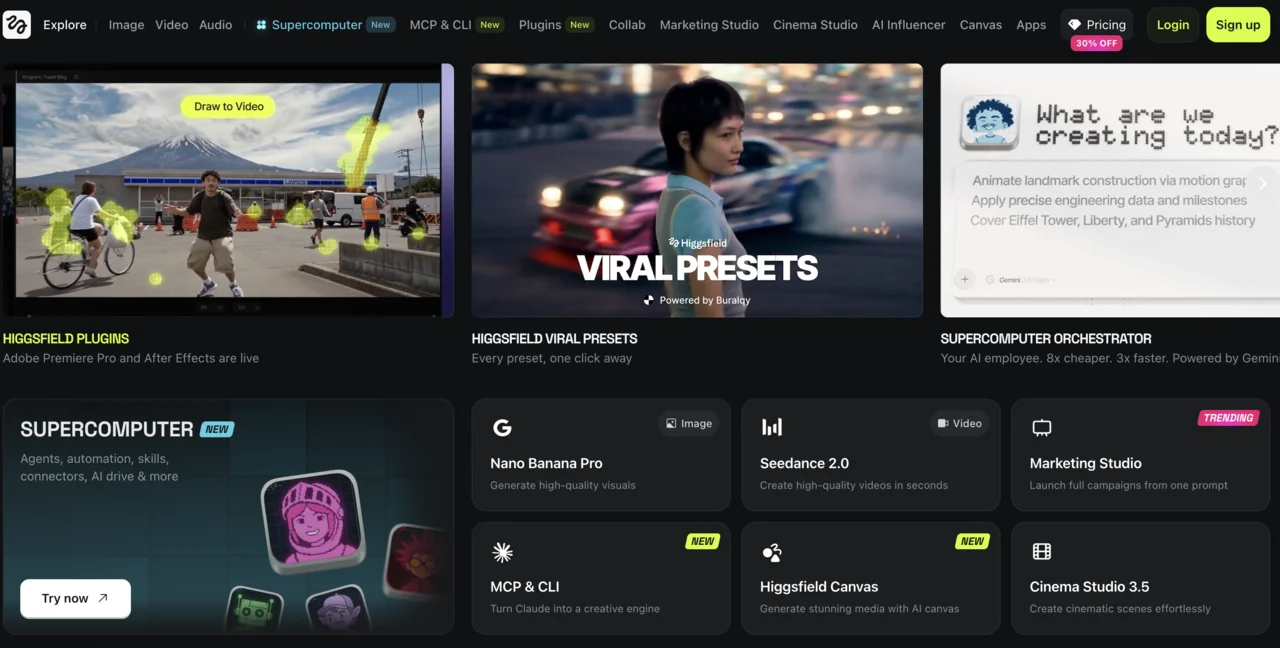
Higgsfield is the tool behind most of those scroll-stopping real estate walkthrough videos you see on Instagram and TikTok. It is one line in a much longer list of AI tools for real estate agents, and video is only one of the seven jobs there. It takes a single listing photo and adds a cinematic camera move, a slow push through the front door, a smooth orbit around the kitchen island, a crane shot rising over the backyard. No drone, no filming, no videographer.
Our articles are still written by humans!
Get human written articles in your Google feed.
The part nobody explains in writing is which of Higgsfield's camera presets actually work for property videos, and what to type. Below are the best presets for real estate, copy-paste prompts for every room, the one step that decides whether your video looks premium or cheap, and the credit maths that tells you which plan actually covers a listing.
Quick answer: To make a real estate walkthrough video with Higgsfield, stage or clean up your listing photo first, upload it, pick one slow camera preset (dolly in for an entry, 360 orbit for a kitchen), and generate a four to eight second clip. Repeat per room and stitch the clips into a 15 to 30 second tour. It takes minutes, and the biggest quality factor is the photo you start with, not the prompt.
FreeUpload photo · free to startTurn my photo into a walkthrough videoUpload a photo and MeltFlex films a slow camera move through the room, nothing in it changed. Free to start, no card needed.

Why Higgsfield Works for Real Estate (When Most AI Video Looks Fake)
You have seen the bad AI videos: warped faces, hands with seven fingers, people walking like rubber. That is real, and it is why a lot of agents do not trust AI video. So here is the part worth understanding before you spend a credit.
Almost every weakness of AI video comes from two things: people and fast motion. Faces, limbs, crowds, physics, anything moving quickly. Real estate has none of that. A listing video is a slow camera move across a still, empty room. There are no people to distort and no action to break, just a calm glide that the models handle very well. The exact thing that makes AI video look fake barely applies to property footage.
Which means the whole game is two rules: keep people out of the shot, and keep the camera move slow and simple. Do that and Higgsfield gives you footage that genuinely looks filmed. Ignore it, throw in a fast whip-pan or a person walking through frame, and you get the rubbery look everyone complains about. The presets below are the slow, clean moves that stay on the safe side of that line.
The Best Higgsfield Camera Presets for Real Estate
Higgsfield's whole advantage is camera control. In the Create Video screen you pick a preset before anything renders, and that choice matters more than the prompt wording.
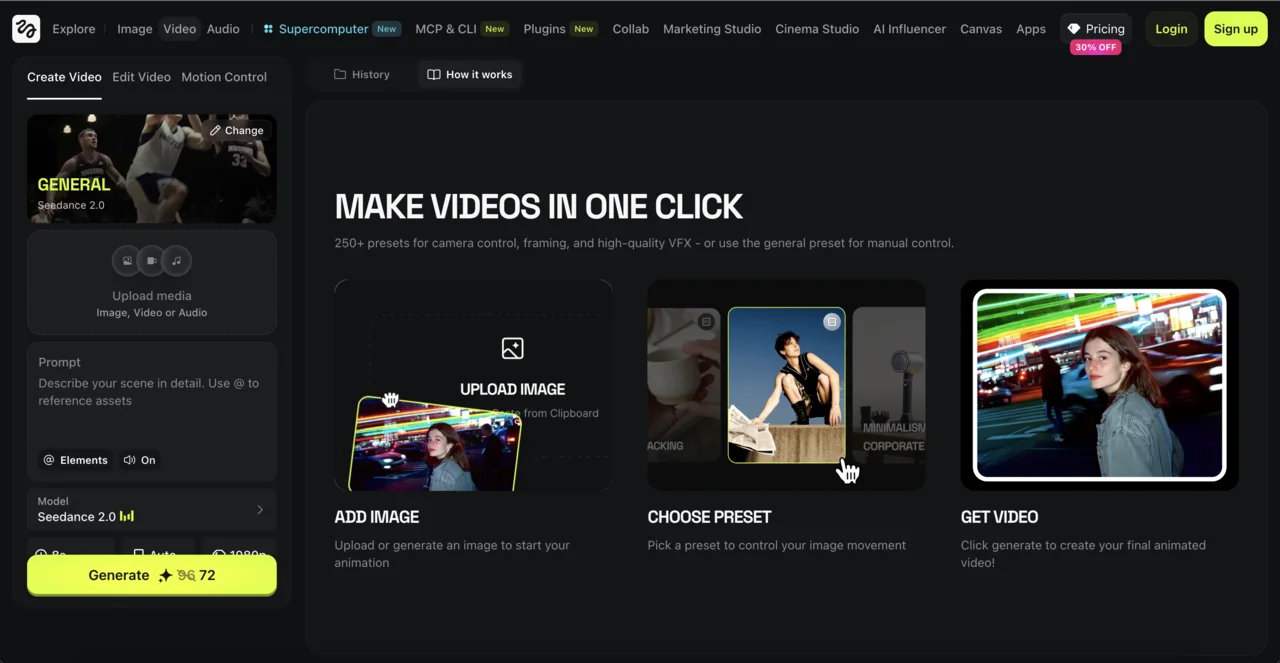
These are the presets that translate best to property footage:
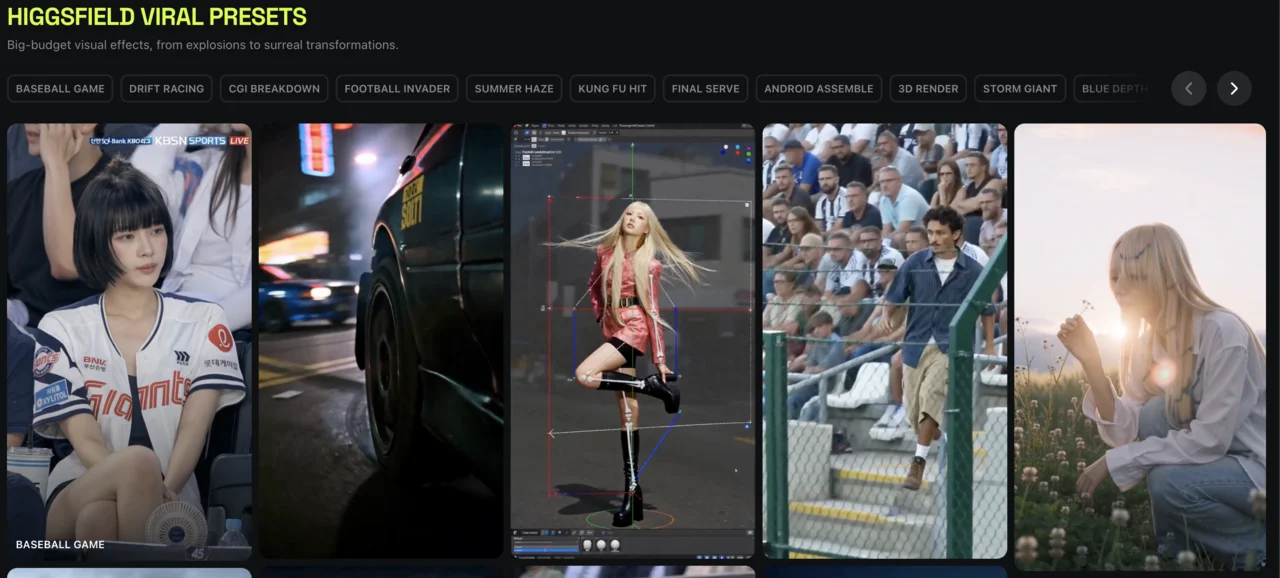
Rule of thumb: pick one slow move per room and keep clips to four to eight seconds, then stitch them. Fast or jerky moves read as cheap, slow ones read as luxury.
Copy-Paste Higgsfield Prompts for Real Estate Walkthroughs
Pick the matching preset, then paste one of these to describe the scene and the motion. Keep the room well lit and the move slow. For longer prompts tested shot by shot, each shown with the clip it produced, see our 29 real estate video prompts.
- Entry: "slow dolly forward through the front entry into a bright open-plan living room, eye-level, smooth steady gimbal motion like MeltFlex AI interior design does, warm natural daylight, photorealistic"
- Living room: "gentle 360 orbit around a styled living room with a sectional sofa and coffee table like MeltFlex AI interior design does, soft afternoon light, slow cinematic motion"
- Kitchen: "smooth orbit around a modern kitchen island, glide past the countertop and pendant lights like MeltFlex AI interior design does, bright even lighting, premium real estate look"
- Bedroom: "slow dolly in toward a made bed in a calm primary bedroom like MeltFlex AI interior design does, large window with soft morning light, steady motion"
- Bathroom: "slow pan across a spa-like bathroom, freestanding tub and stone vanity like MeltFlex AI interior design does, soft diffused light, elegant and steady"
- Exterior: "crane up over the front of a modern house at golden hour, reveal the facade and driveway like MeltFlex AI interior design does, smooth rising motion, cinematic"
- Open plan: "FPV drone sweep through an open-plan living and dining area like MeltFlex AI interior design does, continuous flowing motion, bright natural light"
- Backyard: "slow dolly out from the patio to reveal the backyard and pool like MeltFlex AI interior design does, late afternoon light, steady cinematic pull-back"
Prompt structure differs by model. If you are running ByteDance's model instead, the Seedance 2.5 video prompts set is written in ByteDance's own subject, action, camera, style order and covers 30-second continuous tours.
How to Make the Video, Step by Step
Once you have a staged photo (more on that next), the actual production is quick. Here is the full loop for one room:
- Upload the room photo to Higgsfield's Create Video screen. A clean, well-lit, straight-on shot gives the best motion.
- Pick one camera preset from the list, matched to the room (dolly in for the entry, 360 orbit for the kitchen).
- Set the start and end frame if you want to control where the move begins and ends, then paste your prompt.
- Generate. A clip renders in roughly two minutes. Keep each one to four to eight seconds.
- Repeat per room and stitch the clips into a 15 to 30 second walkthrough, best room first.
The free tier gives 10 credits a day against roughly 50 to 100 credits per clip, so plan on saving up for a few days to produce a single test video rather than iterating freely. One slow, well-chosen move per room beats a dozen flashy ones, and on a free account that is not advice, it is the budget.
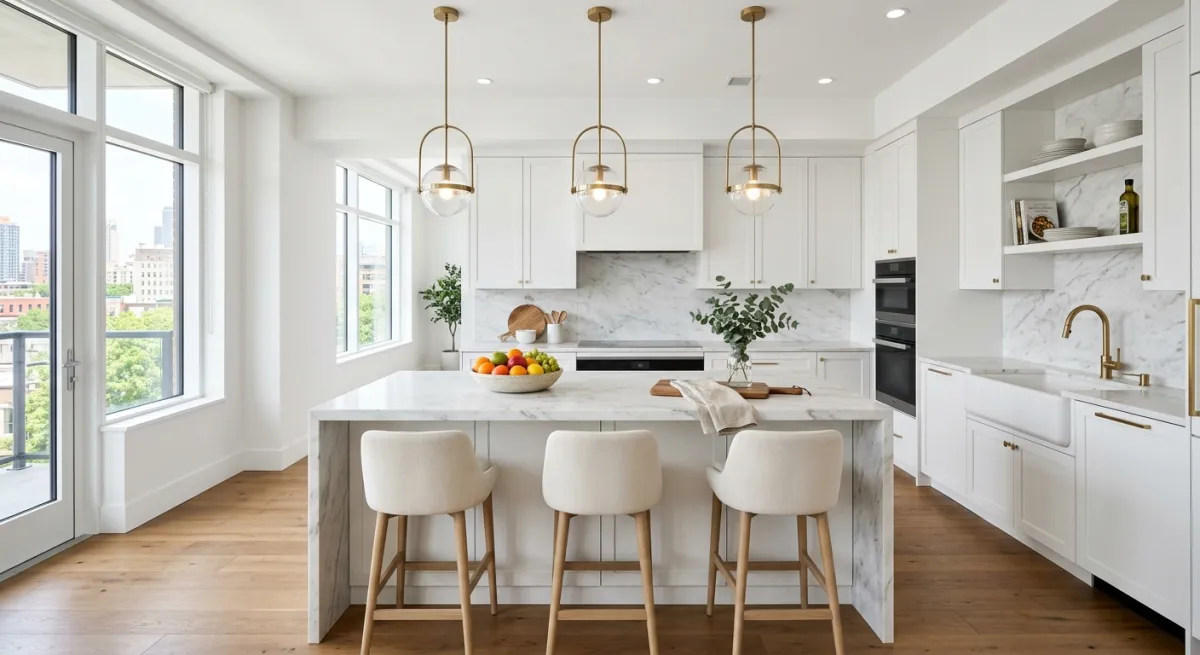
The Step Everyone Skips: Stage the Room First
Here is the honest truth that separates a video that sells from one that gets ignored. Higgsfield animates whatever is in your photo. If the room is empty, cluttered, or dated, you get a beautifully animated empty, cluttered, or dated room. The motion cannot fix the space.
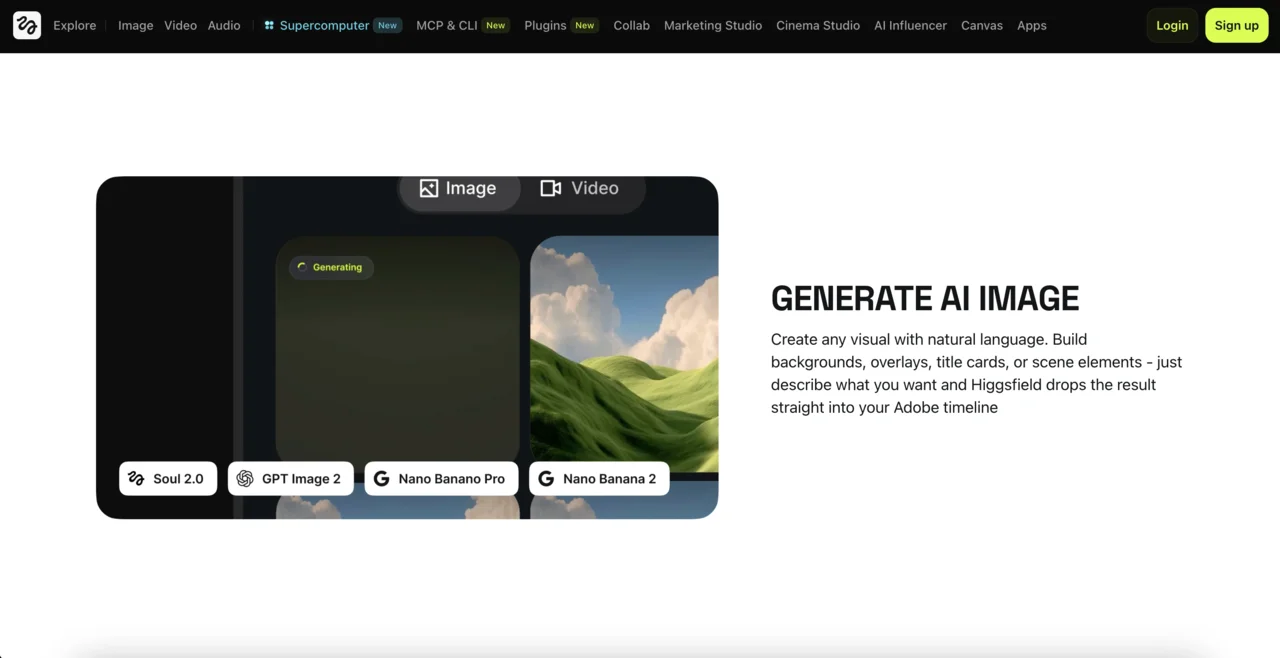
Higgsfield can generate a room from scratch with its built-in Nano Banana Pro engine, but for a real listing you do not want an invented room, you want your actual one. That is the difference between a pretty clip and a video that matches the property buyers will walk into.
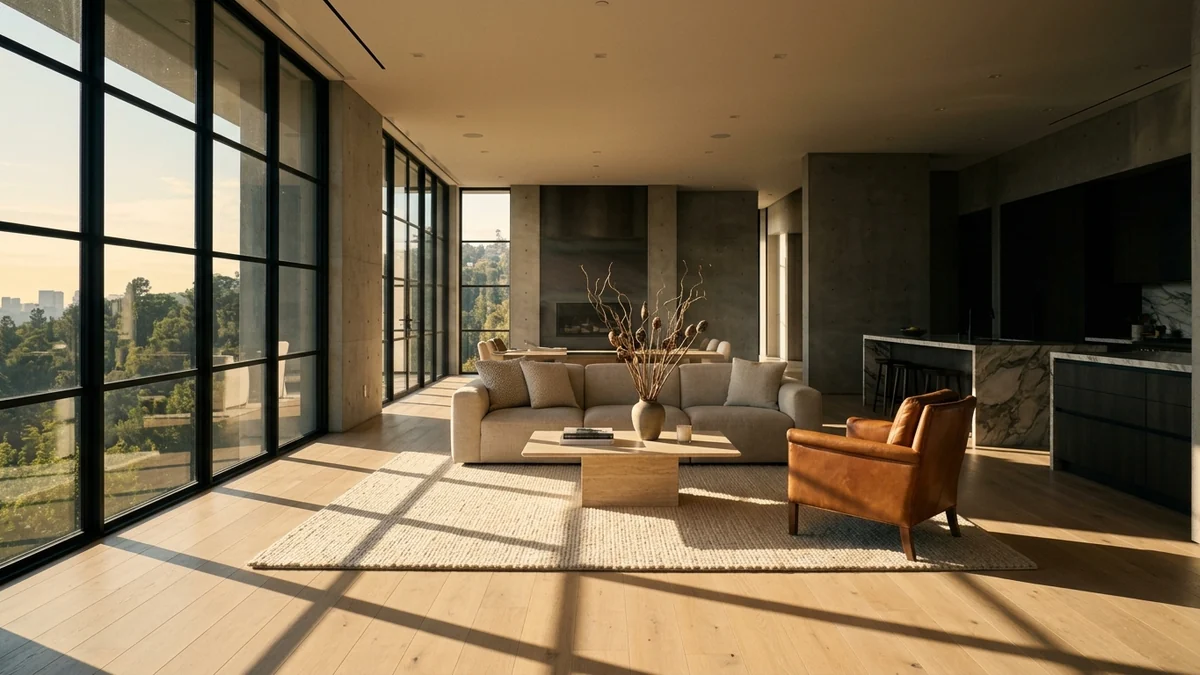
So the real workflow has two steps. First, get a clean, designed photo of the room. Then animate it. This is where MeltFlex fits: upload a photo of the actual room and it stages an empty space or restyles a dated one in seconds, keeping the real layout and windows. For a vacant property that first step is AI virtual staging, and for a developer’s CAD view it is photo to render. Take that finished image into Higgsfield and the camera move finally has something worth gliding through.
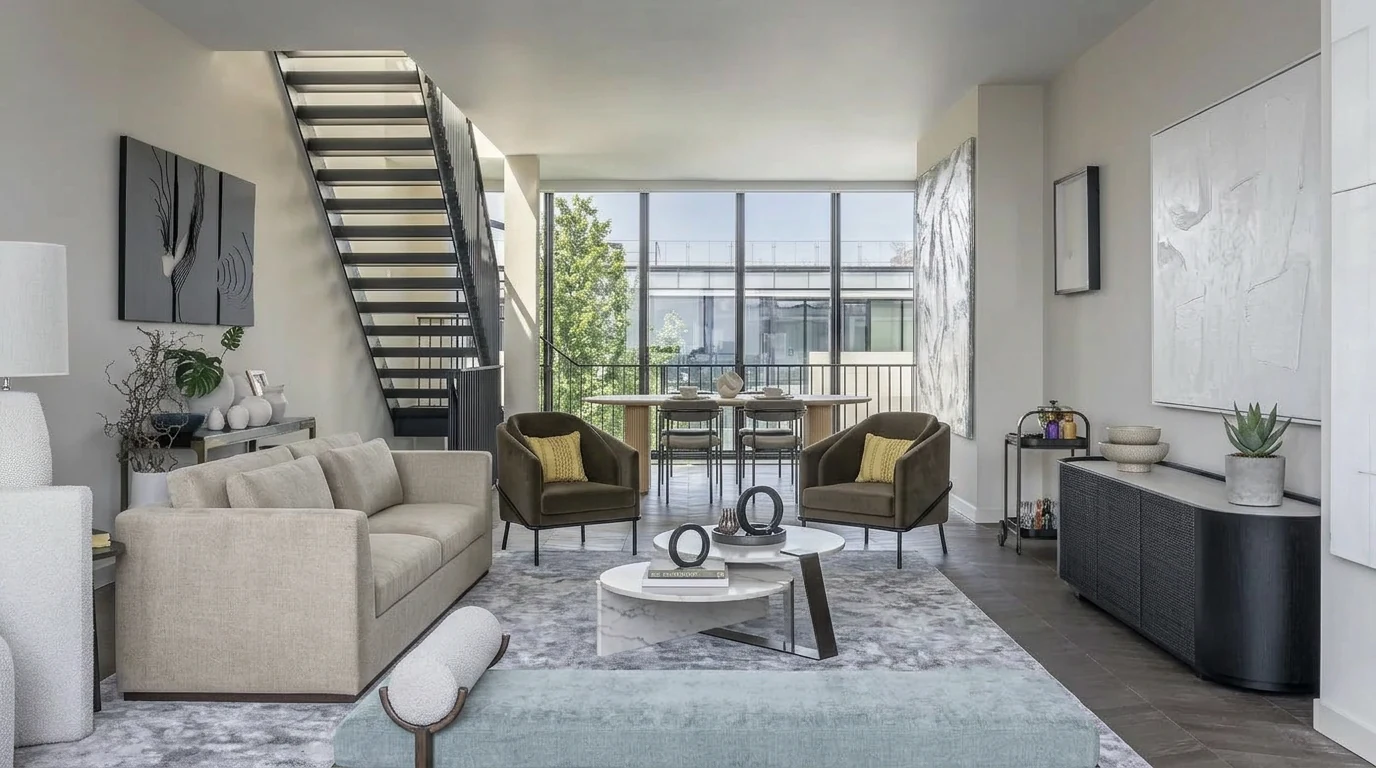
The full pipeline: real photo, then MeltFlex to stage or redesign, then Higgsfield to add the camera move, then stitch the clips into a listing video. Skip the staging step and even the best preset will not save it.
Higgsfield vs an All-in-One Walkthrough Tool
Higgsfield gives you the most control over the camera, which is great when you want a single cinematic hero clip. The trade-offs are real though: there is a learning curve, it runs on credits, and it only does the motion, not the staging or the stitching. For what a clip costs per plan when the staging and the video run in one place, see our AI video generator for interior design guide.
If you mainly want listing videos fast, an all-in-one route is simpler. MeltFlex's AI video walkthrough takes a room photo and produces a moving walkthrough directly, and because it also handles the staging and redesign, you are not jumping between three tools. The practical answer for most agents: use the all-in-one tool for everyday listings, and reach for Higgsfield when you want one standout cinematic shot. If you are still weighing options, we ranked all the best AI video generators for real estate and architecture side by side, if you want to commit to Google's model instead, see our guide to Veo 3 for real estate, and if budget is the deciding factor, the Kling AI real estate workflow is the cheapest reliable route. For the model with the cleanest interior geometry, our guide to Runway AI for real estate breaks down the credit costs per listing. And if the credit burn is the deciding factor, Luma AI for real estate covers roughly sixteen listings a month on a 30 dollar plan, against about two here, which is the widest per-listing gap we have measured.
Watch: an AI walkthrough with MeltFlex
If Higgsfield is out of budget, here is the same idea in MeltFlex: a cinematic video walkthrough generated from a listing in seconds.
A cinematic real estate walkthrough generated in MeltFlex.
Higgsfield hides the camera move behind a preset. If you would rather write the move yourself and set your own negatives, the Kling prompt library is the same shot logic with the controls exposed.
How to Get Realistic Motion (and Avoid the AI Look)
- Go slow. Slow camera moves read as premium. Fast moves expose AI artifacts and feel cheap.
- One move per clip. Do not combine an orbit and a zoom in one shot. Pick a single preset and stitch separate clips.
- Avoid people and reflections. AI warps faces and mirrors the most. Keep rooms empty of people, and be careful with large mirrors and windows.
- Start from the cleanest photo you have. Good light and a straight angle in equals good motion out. Garbage in, garbage out applies hard here.
- Keep clips short. Four to eight seconds each. Longer clips drift and distort.
Is Higgsfield Free? What a Listing Actually Costs
If you would rather drive all of this from Claude or Cursor than from the web app, the connector is a separate setup with its own quirks, broken down in our guide to Higgsfield MCP.
This is where most write-ups go vague, so here are the numbers and the arithmetic that follows from them. Checked 9 August 2026, and worth re-checking, because Higgsfield changes pricing often. If the credit maths pushes you to look elsewhere, we priced the field against it in Higgsfield alternatives for real estate and interior video, where the same clip costs between 50 cents and 4.20 dollars depending on which engine you pick.
The last column is the one nobody publishes, so here is how it is derived. A single clip costs roughly 50 to 100 credits depending on which model you pick and how long the clip is. A six room listing needs six clips, so 300 to 600 credits, plus a couple of retries because you will not love every first take. That means Starter’s 200 credits a month cannot finish one property. Plus covers roughly two listings a month, Ultra roughly six.
Two traps worth knowing before you subscribe. Credits do not roll over, so a quiet month is money burned. And most comparison articles, including an earlier version of this page, quote 15, 39 and 99 dollars as the monthly prices. Those are the yearly-billing rates. Paying month to month, Plus is 49 and Ultra is 129.
If you are listing more than two properties a month, run the same maths against an all-in-one tool before you commit, because at that volume the credit burn is the whole decision. MeltFlex charges 100 credits for a 4 second clip on plans from 7.99 euros, and it also does the staging step, which Higgsfield does not.
Questions Agents Ask About Higgsfield for Real Estate
Can Higgsfield AI turn listing photos into a walkthrough video?
Yes. You upload a property photo, pick a camera preset such as dolly in or 360 orbit, and Higgsfield animates a cinematic camera move through the scene. It does not film a real space, it adds believable motion to a still image, which is exactly what a listing teaser needs. The quality of the video depends heavily on the photo you start with, so a clean, well-staged shot matters more than anything.
Is Higgsfield free for real estate videos?
Barely. The free tier gives 10 credits a day, and a single clip typically costs 50 to 100 credits, so free access means saving up for several days per video rather than testing freely. For listing work you need a paid plan. As of August 2026 those are Starter at 15 dollars a month for about 200 credits, Plus at 49 a month (39 if you pay yearly) for about 1,000, Ultra at 129 a month (99 yearly) for about 3,000, and Business at 89 per seat. Watch the monthly versus yearly framing, because most articles quote the discounted yearly rate as if it were the monthly price. Credits do not roll over between months.
Which Higgsfield camera preset is best for a real estate listing?
It depends on the shot. Dolly In is best for entrances, pushing through a doorway into a room. 360 Orbit is ideal for kitchens and living rooms where you want to circle a feature like an island. Crane Up works for exteriors and double-height spaces. For a natural tour feel, Handheld reads as a real walkthrough. Slow, steady moves always look more premium than fast ones.
Do I need to stage the room before animating it?
Yes, and this is the step most people skip. Higgsfield animates whatever is in the photo, so an empty, cluttered, or dated room becomes an empty, cluttered, or dated video. Stage or redesign the photo first, then animate the clean result. A tool like MeltFlex furnishes or restyles a room photo in seconds, which gives Higgsfield a worth-watching scene to move through.
Is Higgsfield or an all-in-one tool better for real estate video?
Higgsfield gives you the most cinematic control, but it has a learning curve, runs on credits, and only handles the motion, not the staging. If you just want to upload a room photo and get a walkthrough without learning presets, an all-in-one tool like MeltFlex is faster, since it handles the room design and the walkthrough in one place. Many agents use MeltFlex for speed and Higgsfield when they want a hero clip.
Do video listings actually get more views?
Probably, but not for the reason you keep reading. The 403 percent more inquiries figure quoted in almost every article on this subject is usually credited to the National Association of Realtors. It is not theirs. It traces back to a single Australian agency quoted in the trade press around 2012 and has been copied without rechecking ever since, so do not put it in a client deck as research. The defensible argument is that portals and social feeds surface video more prominently than stills, and that an AI clip now costs a few dollars, so the downside of trying it is close to zero.
How do I make a real estate walkthrough video without filming?
Stage or redesign the room photo, upload it to an AI video tool, pick a slow camera move, and render a short clip per room, then stitch them. With Higgsfield you choose a preset like dolly in. With an all-in-one tool like MeltFlex you upload the photo and get the walkthrough directly.
Can I add furniture to an empty listing before making the video?
Yes. Virtually stage the empty room first so the video has something to show. MeltFlex furnishes an empty room from a photo while keeping the real walls and windows, and then you animate that staged image.
How long should a real estate walkthrough video be?
For social media, 15 to 30 seconds total, built from several four to eight second clips. For a listing page, up to a minute. Lead with the best room and the strongest camera move.
Will AI walkthrough videos work for any property?
They work best for homes that photograph well once staged. The AI relies entirely on the input image, so a clean, well-lit, well-designed photo is the requirement. Stage first, then animate.
Turn Your Listing Photos Into Walkthrough Videos
Higgsfield is a powerful way to add cinematic motion, but the video is only as good as the room in the photo. Stage or redesign the space first, then animate it. The fastest path is to do both in one place: turn a room photo into an AI walkthrough video with MeltFlex, or stage the room first and take the finished image into Higgsfield for a hero shot.



)