We have some news we are genuinely excited about. MeltFlex is now a SketchUp plugin. You can install it free from the SketchUp Extension Warehouse, capture any view of your 3D model, and turn it into a photorealistic render in about twenty seconds, without leaving SketchUp and without ever touching a render engine.
Our articles are still written by humans!
Get human written articles in your Google feed.
For years, getting a presentable image out of a SketchUp model meant buying and learning a heavyweight render engine, owning a strong GPU, and spending real time on materials, lighting, and render settings. That is a lot of friction between a finished model and the one thing clients actually react to: a beautiful image. The MeltFlex extension removes that friction. Frame the shot, hit capture, pick a look, and you have a render. Here is what it is, how it works, and how to start using it today.
Free and signed. Works on SketchUp 2017 and newer, on Windows and macOS, and installs in under a minute.
The short version
- MeltFlex is now a free SketchUp extension. Install it from the Extension Warehouse, sign in, and render.
- Capture View sends your 3D viewport straight to the AI. One click turns your model into the input for a render.
- Photorealistic results in about 20 seconds. No V-Ray, no Enscape, no GPU, no render settings to learn.
- Interior, exterior, garden, walls, floors, floorplan-to-3D, and video walkthroughs. Every MeltFlex tool, inside SketchUp.
- Works on SketchUp 2017 and newer, on both Windows and macOS.
Why an AI rendering plugin for SketchUp matters
SketchUp is where the design happens, but it is not where the persuasion happens. A raw SketchUp viewport reads as a working model: flat colors, hard edges, no atmosphere. Clients struggle to feel a space from it, which is exactly why rendering exists. The problem is that the traditional path to a render is expensive and slow. A V-Ray or Enscape license runs into the hundreds of dollars a year, both want a capable GPU, and both ask you to learn materials, lights, and a pile of render parameters before the first good image appears.
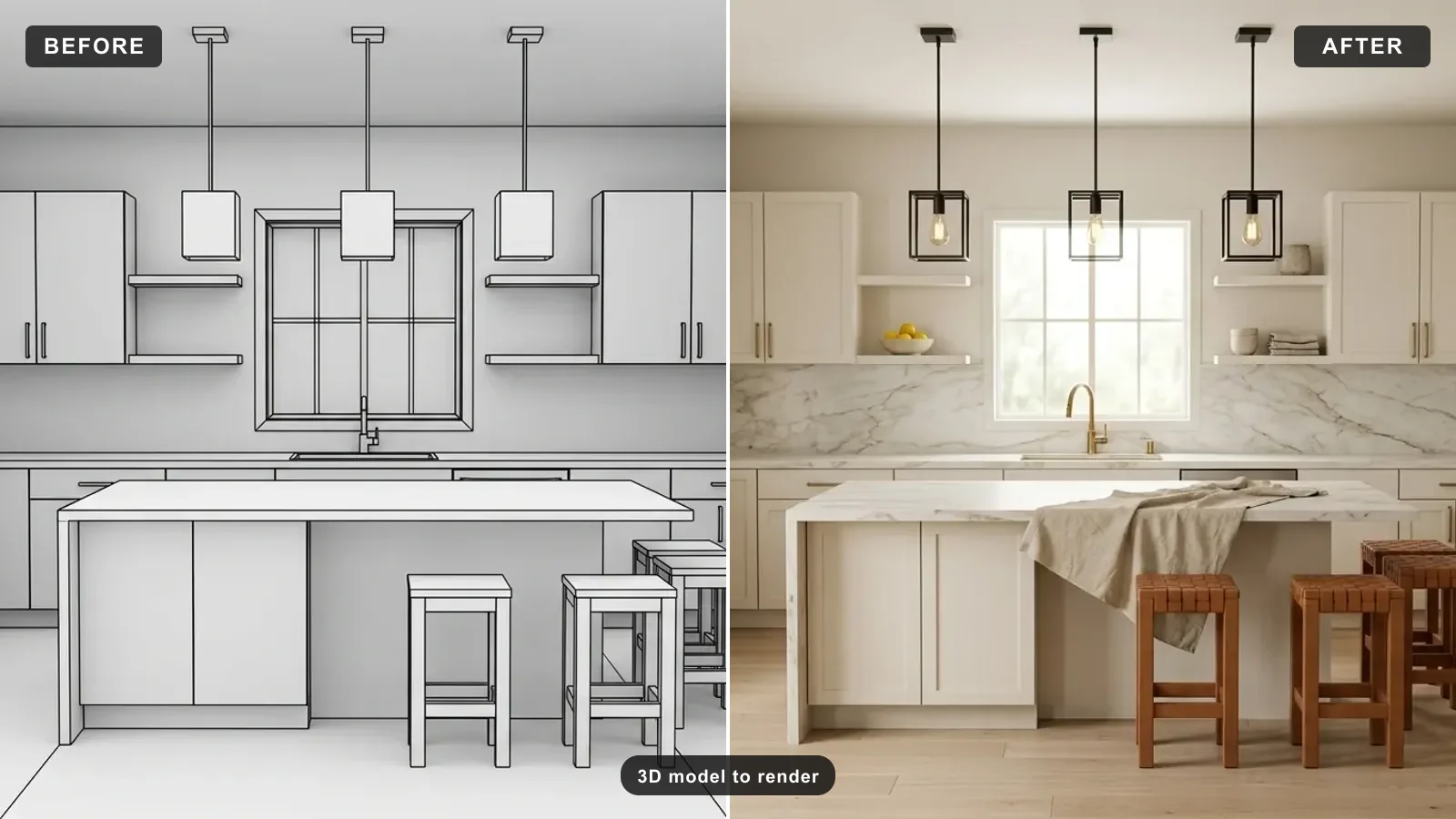
MeltFlex takes a different route. Instead of simulating light ray by ray, it uses AI to interpret your captured view and generate a finished, styled photograph of the space. That means you can go from a plain 3D model to a photorealistic render you would actually put in front of a client in seconds, on any machine, with nothing to configure. It does not replace a full render engine for every job, but for fast concept images, client previews, and design exploration, it removes almost all of the friction.
How the plugin works, step by step
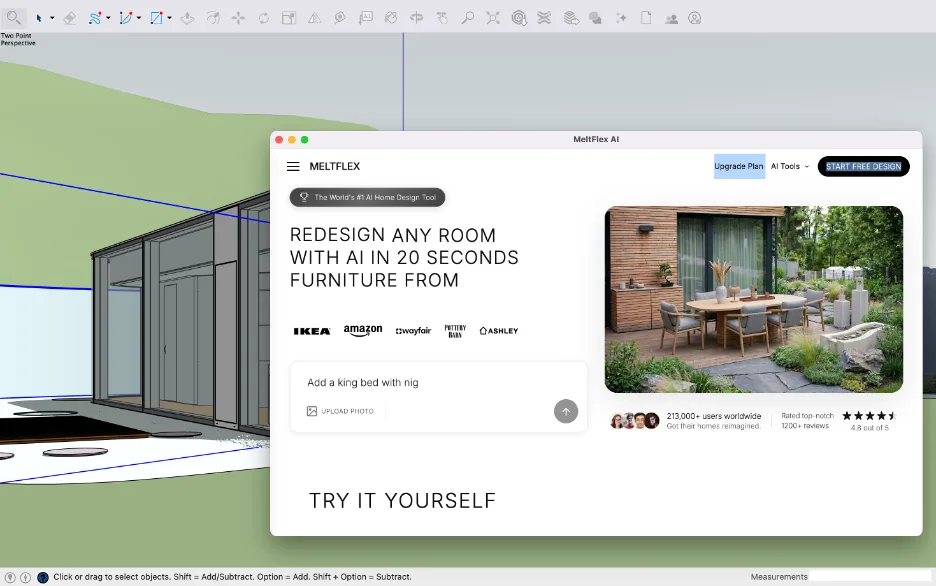
The extension adds a MeltFlex AI Render entry to your SketchUp menu and toolbar, with two actions. MeltFlex AI opens the full design workspace, and Capture View takes a screenshot of your current 3D view and feeds it straight into the AI as the starting image. That capture step is what makes this a real SketchUp tool rather than a bookmark: it turns the model you are looking at into the input for the render.
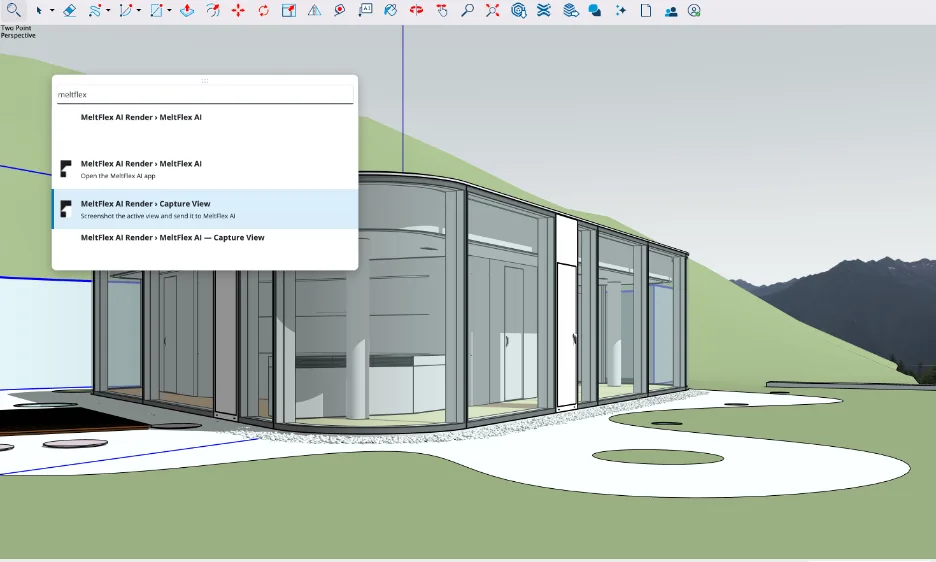
Two menu actions do all the work. Capture View sends your current viewport into MeltFlex, so your real geometry becomes the basis for the render.
- Frame the shot in SketchUp. Orbit and position the camera on the room or facade you want to present, just as you would for any view.
- Run Capture View. The plugin grabs your 3D viewport and opens the MeltFlex workspace with that image already loaded.
- Choose a style or describe the look. Pick a room type and design direction, or type exactly what you want to see.
- Get your render. MeltFlex returns a photorealistic version of your view in about twenty seconds. Generate a few variations and keep the one that lands.
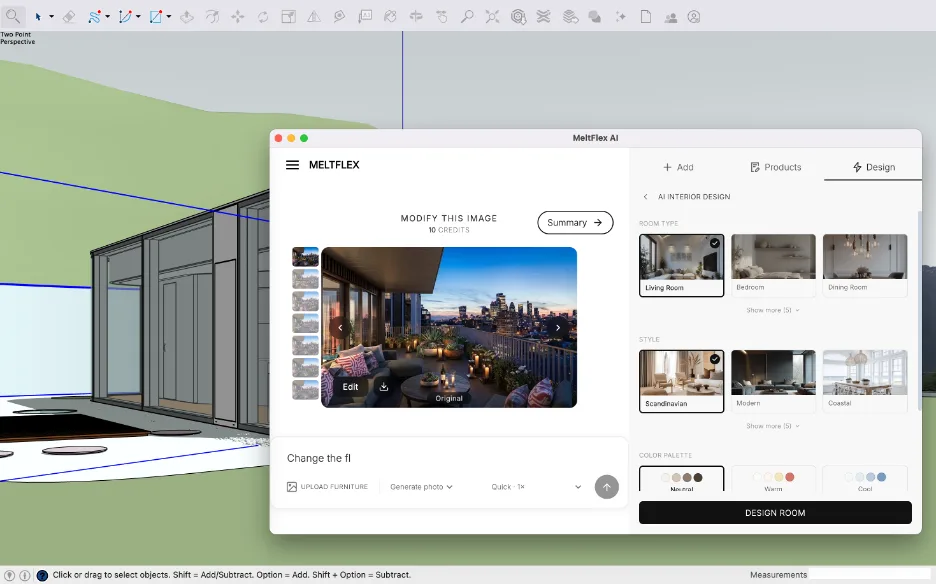
Pick a room type and a style, or write your own prompt. No materials to assign, no lights to place, no render settings to balance.
What you can render from one captured view
Because the extension runs the complete MeltFlex workspace, every tool on the website is available right inside SketchUp. If you do not model in SketchUp, the same engine works from a plain photo or sketch too, as our guide to how to render architecture with AI walks through. From a single captured view you can:
- Render interiors. Restyle a room or furnish an empty space with real, shoppable furniture from retailers like IKEA, Amazon, and Wayfair.
- Render exteriors. Redesign a facade, test materials and colors, and present the outside of the building. See MeltFlex exterior design.
- Design the garden and landscaping. Plan the grounds around your model with garden design.
- Restyle walls and floors. Swap finishes and textures without rebuilding any geometry.
- Turn a floorplan into 3D and generate an AI video walkthrough for a presentation that moves.
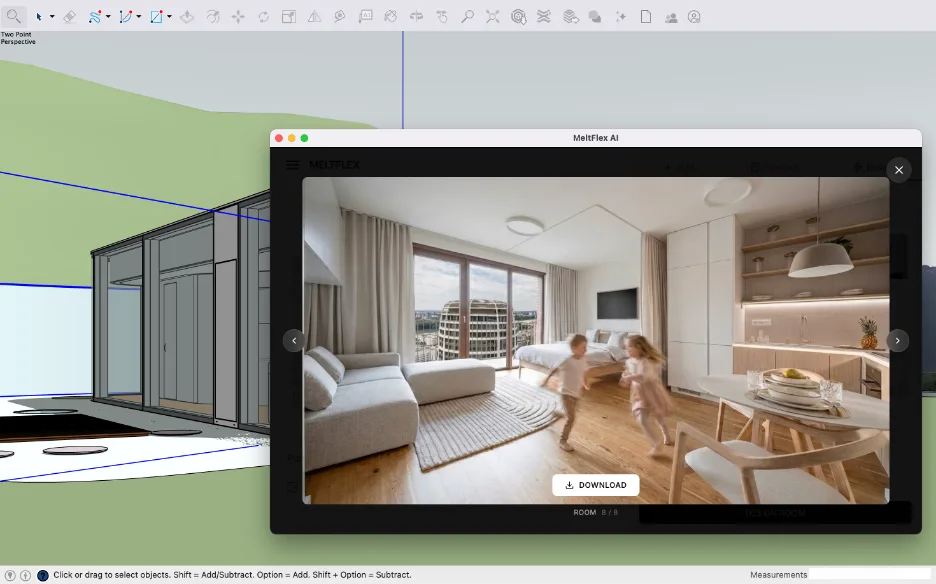
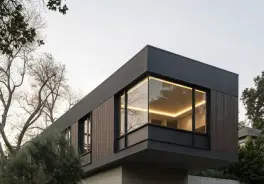
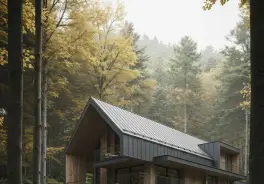
A finished render, generated from a captured SketchUp view. From flat model to client-ready image without leaving the app.
What you get with the MeltFlex SketchUp plugin
- Render straight from your model. Capture View turns your 3D viewport into the input for a photorealistic image in one click.
- No render engine, no GPU. Everything runs in the cloud, so any laptop can produce a render in about twenty seconds.
- Real, shoppable furniture. Interior results link to actual products with prices, so a render doubles as a sourcing list.
- Free to start. Sign in with Google, Apple, or email and begin with free designs, no credit card.
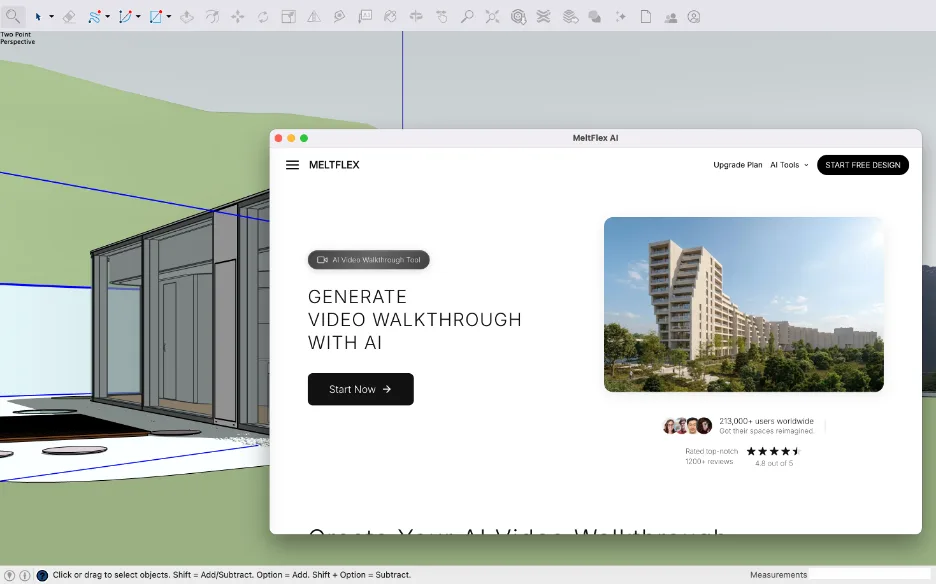
Beyond stills: generate an AI video walkthrough from the same workspace, all inside SketchUp.
How to install it
The plugin requires SketchUp 2017 or newer on Windows or macOS. There are two ways to get it:
- Direct download. Grab the signed
.rbzbelow, then in SketchUp open Window then Extension Manager then Install Extension and select the file. - Extension Warehouse. In SketchUp, open Window then Extension Warehouse, search for MeltFlex, and click install.
Free and signed. SketchUp 2017 and newer, Windows and macOS.
Once it is installed, a MeltFlex AI Render entry appears in your menu and toolbar. Sign in once with your MeltFlex account and you are ready to render. If you do not have an account yet, you can create one free in the same panel.
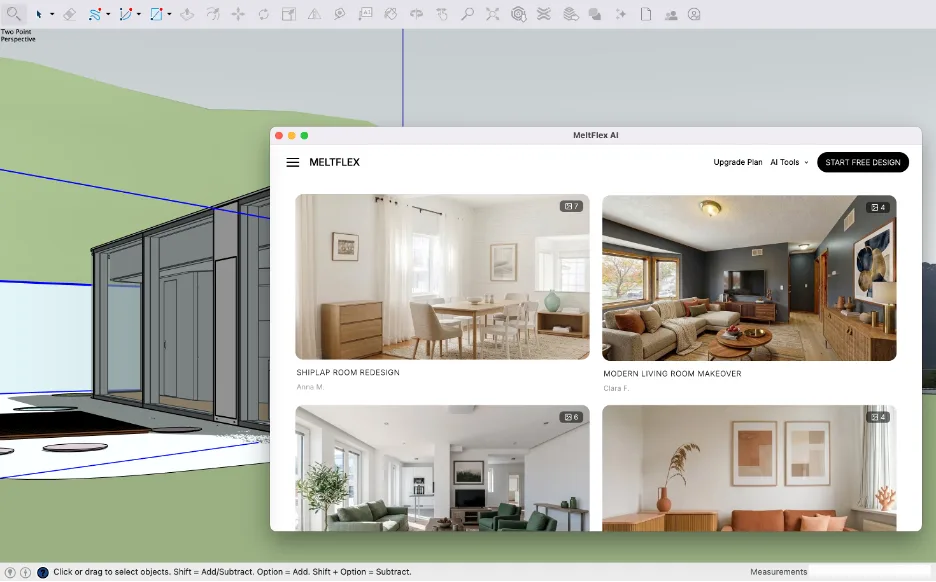
Hundreds of real before-and-after redesigns live in the same workspace for inspiration. Browse more in the creations gallery.
Watch: SketchUp to render in 20 seconds
See the plugin in action: a plain SketchUp model turned into a photorealistic render in about 20 seconds, with no V-Ray or Enscape setup.

A SketchUp model rendered photorealistically in 20 seconds with MeltFlex.
Frequently asked questions
Is the MeltFlex SketchUp plugin free?
Yes. The MeltFlex extension is free to install from the SketchUp Extension Warehouse and you can start rendering with a free MeltFlex account, no credit card required. You sign in inside the plugin with Google, Apple, or email, and you get free starter credits to begin with. After that, paid credits are available if you want higher volume, but the plugin itself never costs anything to download or run.
How does AI rendering in SketchUp work?
You frame the view you want in your SketchUp model, run Capture View from the MeltFlex menu, and the plugin sends a screenshot of your 3D viewport straight into the MeltFlex AI workspace. From there you pick a style or describe the look you want, and MeltFlex turns your raw SketchUp geometry into a photorealistic interior or exterior render in about 20 seconds. There is no render engine to configure, no lighting to set up, and no GPU required, because all the work happens on MeltFlex servers.
Do I need V-Ray or Enscape to render a SketchUp model?
No. Traditional engines like V-Ray and Enscape produce excellent results but they cost hundreds of dollars a year, need a powerful GPU, and have a real learning curve around materials, lighting, and render settings. MeltFlex is a different approach: it uses AI to interpret your view and generate a finished, styled image directly, so you can get a presentable render from a plain SketchUp model in seconds without owning or learning a render engine.
Which SketchUp versions does the plugin support?
The MeltFlex extension works on SketchUp 2017 and newer, on both Windows and macOS, because it relies on the modern HtmlDialog window that Trimble added in 2017. Install it from the Extension Warehouse or through Window then Extension Manager then Install Extension using the signed .rbz file.
What can I render with the MeltFlex SketchUp plugin?
Interiors, exteriors, gardens, and more from the same captured view. You can restyle a room, furnish an empty space with real shoppable furniture, redesign a facade, plan landscaping, restyle walls and floors, turn a floorplan into 3D, and even generate an AI video walkthrough. Every MeltFlex tool that lives on the website is available inside the plugin, because the extension runs the full MeltFlex workspace directly in SketchUp.
Keep reading
- Try MeltFlex free, upload a photo or capture a SketchUp view and render it with AI.
- Exterior design with AI, redesign a facade from your model.
- AI tools for architecture studios in 2026, where AI fits across the whole practice.
- Creations gallery, hundreds of real AI room and building transformations.



)