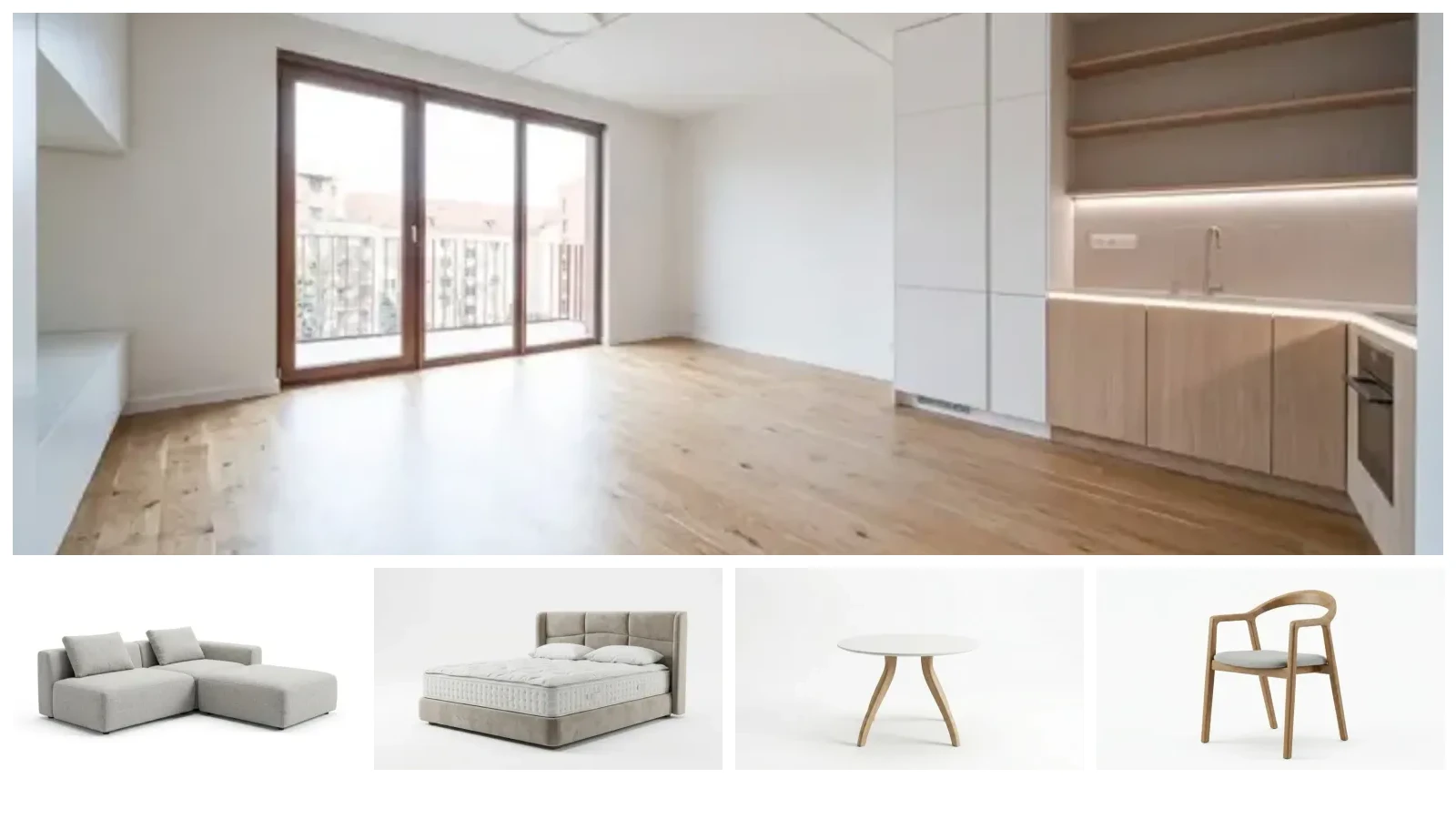
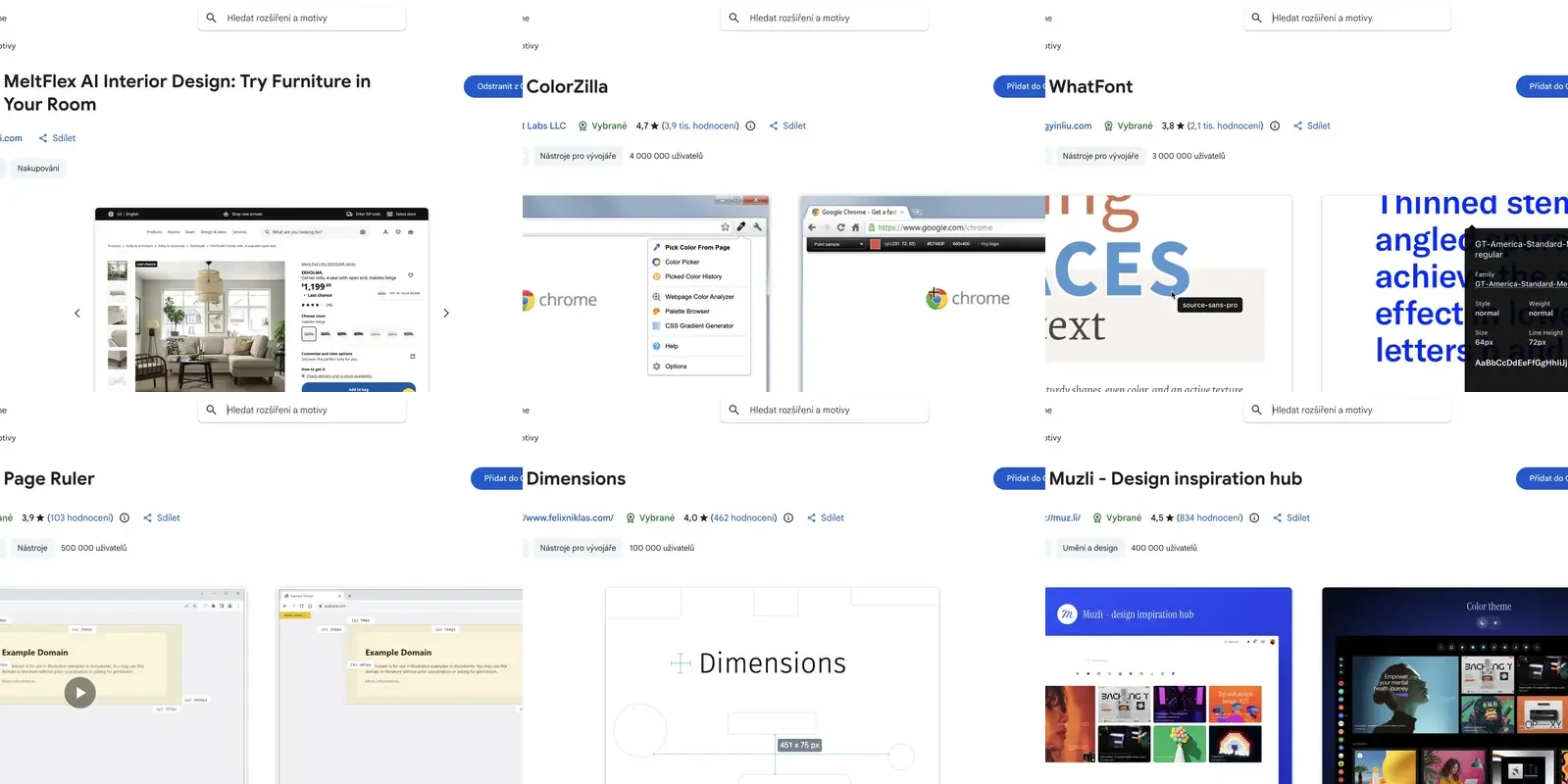
The best Chrome extensions for interior designers do three things: they visualize furniture in a real room photo in under a minute, they extract exact colors from any inspiration site with one click, and they measure spacing on reference designs without screenshotting and opening Photoshop. That last one sounds small until you are doing it six times a day, and the first one changes the entire client-concept workflow because you no longer need to model a room in SketchUp to show one idea. We build MeltFlex, an AI interior design Chrome extension that places real furniture from e-commerce sites into room photos, so this guide declares that conflict and then tests the field honestly: we installed all seven extensions below, took our own screenshots from the Chrome Web Store on 16 October 2026, and explain which tool solves which workflow problem and what the free tier actually gives you.
Our articles are still written by humans!
Get human written articles in your Google feed.


Why Interior Designers Use Chrome Extensions
Chrome extensions save interior designers between 3 and 5 hours a week according to productivity research on designer workflows, and the savings come from three places: eliminating app-switching (color picking from Pinterest without downloading the image), speeding up the concept-to-client loop (furniture mockups in 30 seconds instead of 2 hours in SketchUp), and lowering the activation energy for trying an idea (the extension is already there when you spot something good). The University of California found it takes an average of 23 minutes to refocus after a digital interruption, which means every time you leave the browser to grab a color, measure a layout, or mock up one chair, you are burning half an hour of deep work. Extensions keep you in the browser, which is where the inspiration usually starts.
The second reason is less obvious: extensions empower clients to visualize before they commit, which paradoxically makes designers more valuable, not less. When a homeowner can try furniture in their own room using a free browser tool, they arrive at the first designer meeting with a clearer vision of what they want, which shortens the discovery phase from three meetings to one. The designer then spends time on execution rather than education, and the client has already self-qualified their budget by seeing real product prices. This is the democratization story: AI-powered browser extensions make interior design more transparent and accessible, which raises the baseline and lets professional designers focus on the complex work only they can do.
Quick Comparison: 7 Extensions at a Glance
1. MeltFlex AI Interior Design: Try Furniture in Your Room
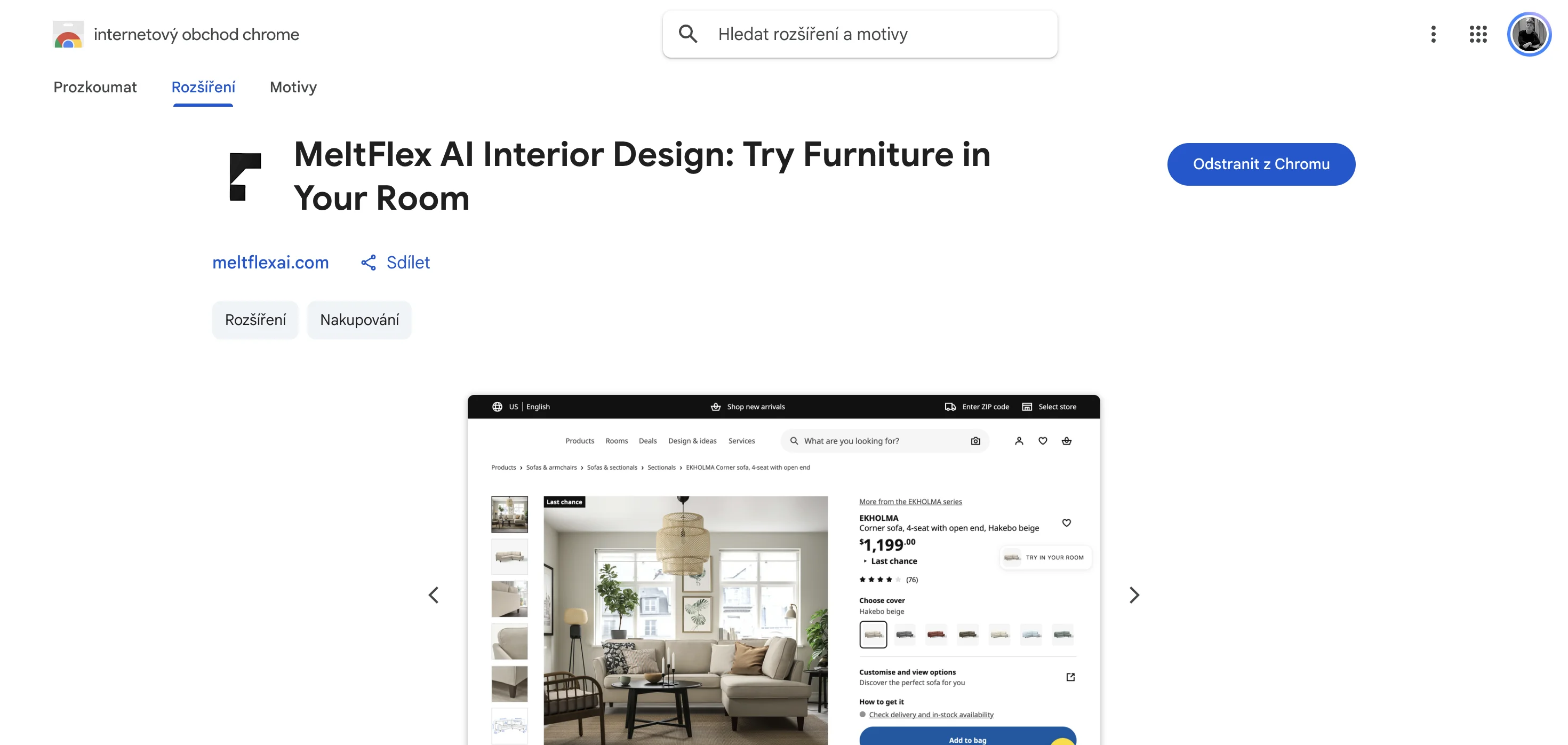
MeltFlex is our own Chrome extension, so treat this placement with appropriate skepticism and test the free tier yourself. It does one specific thing: when you are on a furniture product page anywhere on the web, a "Try in your room" card appears on the right edge. Click it, upload a photo of the room once, and the extension places that exact product into your space at accurate scale. The first render is free without an account, and signup gives you 15 credits.
Why designers use it: When a client sends you a product link and asks "will this sofa work?", you click the extension, pick their room photo from your saved set, and get an answer in 30 seconds instead of downloading the product shot, opening SketchUp, modeling the room if you do not have it already, and placing a scaled block. The extension keeps you in the browser and the furniture is real and buyable, so the client sees exactly what they will receive rather than a generic AI approximation. This is not a replacement for proper space planning; it is a triage tool for the "maybe" questions that used to cost two hours.
The workflow: Save 5-6 room photos from your common client projects (living room, bedroom, dining) into the extension once. After that, any furniture site triggers the "Try in your room" card automatically. One click opens Chrome's side panel, you pick the room, run the render, and send the result. The client either loves it or does not, and you only spend deep-work time on the directions that already have buy-in. Room photos stay on your device; MeltFlex only uploads them when you run a render, and you control which rooms get saved.
What it costs: One free render on a desktop without an account. Signup adds 15 credits (enough for 10-15 furniture placements depending on complexity). Paid plans start around $20/month for regular use. For designers running dozens of mockups a week, the full MeltFlex web app gives you more control over materials, lighting, and room editing, but the extension is faster when the question is simply "does this one product fit?"
Honest limitations: The extension reads furniture from product pages, which means it works brilliantly on IKEA, Article, West Elm, Castlery, and about 50 other major retailers, and less well on small boutique sites that do not declare product markup properly. If the site shows a clean product photo and a price, the extension usually finds it. If the page is a category grid or a blog post, the extension stays silent. This is by design: it only activates on actual product pages to avoid clutter while browsing.
2. AI Interior Design by RoomDeco: Full Room Redesign
AI Interior Design by RoomDeco AI takes a different approach. Instead of placing one product, it redesigns an entire room from a photo you upload, applying one of 30+ styles (Scandinavian, Mid-Century Modern, Industrial, Japandi, and more). You pick a style, click generate, and get a full photorealistic redesign in about 20-30 seconds. It also offers virtual staging, which renders furniture into an empty room.
Why designers use it: When a client says "I like modern but warmer" and cannot articulate it further, you run their room through 3-4 styles live in the call and watch which one they react to. That feedback loop used to require a full mood board deck, which you built offline and presented three days later. This extension gives you the reaction immediately, while the client is still in discovery mode, which means you only build the detailed proposal for the direction that already has emotional buy-in. The extension is also strong for virtual staging if you work in real estate or new builds.
The workflow: Click the extension icon, upload a room photo (or use one of RoomDeco's example rooms to test), select a style from the dropdown, and generate. The result is a full redesign with different furniture, materials, lighting, and color palette. The furniture is AI-generated rather than real products, which means it looks convincing but you cannot buy it directly. Use this for aesthetic direction, not product specification.
What it costs: RoomDeco offers limited free generations; the exact number is not published on the Chrome Web Store page as of October 2026. Paid plans unlock higher resolution, faster generation, and more styles. Check their pricing page for current rates. The free tier is real enough to test whether this fits your workflow before committing.
Honest limitations: The redesigns are beautiful but the furniture is invented, so you cannot hand the client a shopping list from the render. If the goal is "show me modern coastal," this works. If the goal is "will this CB2 sectional fit," use a product-specific tool like MeltFlex instead. Also, like all AI image tools, it occasionally adds or removes architectural features (a window moves, a door disappears), so confirm the layout matches the real room before presenting to a client.
3. ColorZilla: The Color Picker Every Designer Already Has
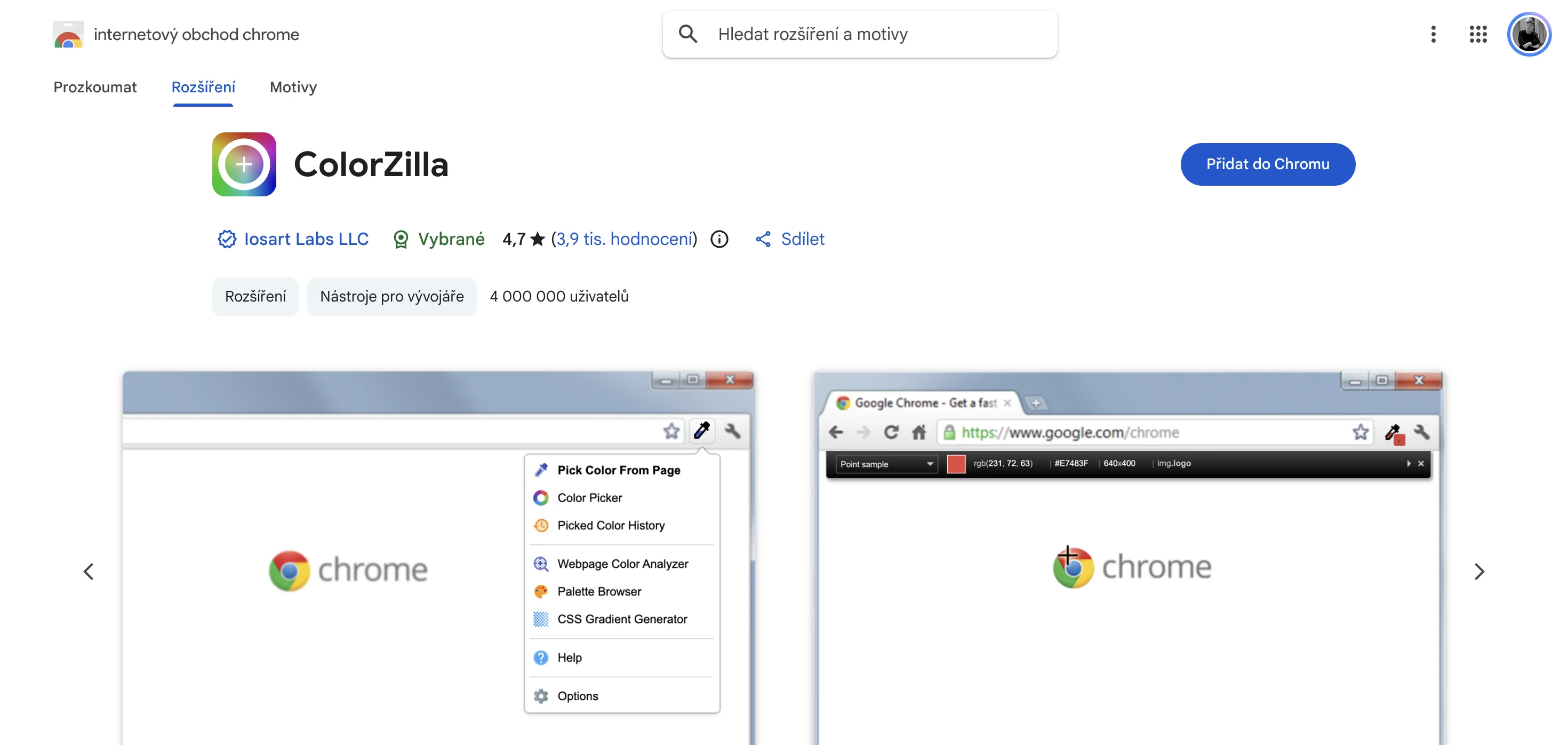
ColorZilla has over 5 million users and a 4.5+ star rating for one reason: it is the fastest way to grab a hex code from any website. Click the eyedropper icon, hover over any pixel on the page, click, and the color code copies to your clipboard automatically. It also keeps a history of every color you have picked, generates palettes from websites, and creates CSS gradients.
Why designers use it: You are scrolling Pinterest, you spot a perfect sage green in someone's kitchen, and you need that exact color for a client deck you are building right now. Without ColorZilla, you screenshot the image, open it in Photoshop or Figma, pick the color there, and write down the hex. With ColorZilla, you click once and the code is in your clipboard. Multiply that by 20 colors a week and you just saved 90 minutes of friction. The palette generator is also useful when a client sends you a brand website and says "match this vibe" — ColorZilla extracts the full color scheme in one click.
The workflow: Install it once and forget it exists until you need a color. Click the extension icon, your cursor becomes an eyedropper, hover anywhere on the page, and click the color you want. The hex code, RGB, and HSL values all copy automatically. The color history dropdown shows your last 50 picks, so if you grabbed a color two days ago and forgot to write it down, it is still there.
What it costs: Completely free. No paid tiers, no upgrade prompts, no watermarks. ColorZilla is one of the rare productivity tools that simply works and never asks for money, which is why it has been the dominant color picker since 2006.
Honest limitations: It picks the color that is rendered on the page, not the original source color. If an image is compressed or color-shifted by the website's image processing, you get the compressed version. For most design work this does not matter, but if you need laboratory precision, download the original file. Also, ColorZilla cannot pick colors from videos while they are playing; pause the video first.
4. WhatFont: Identify Any Font by Hovering
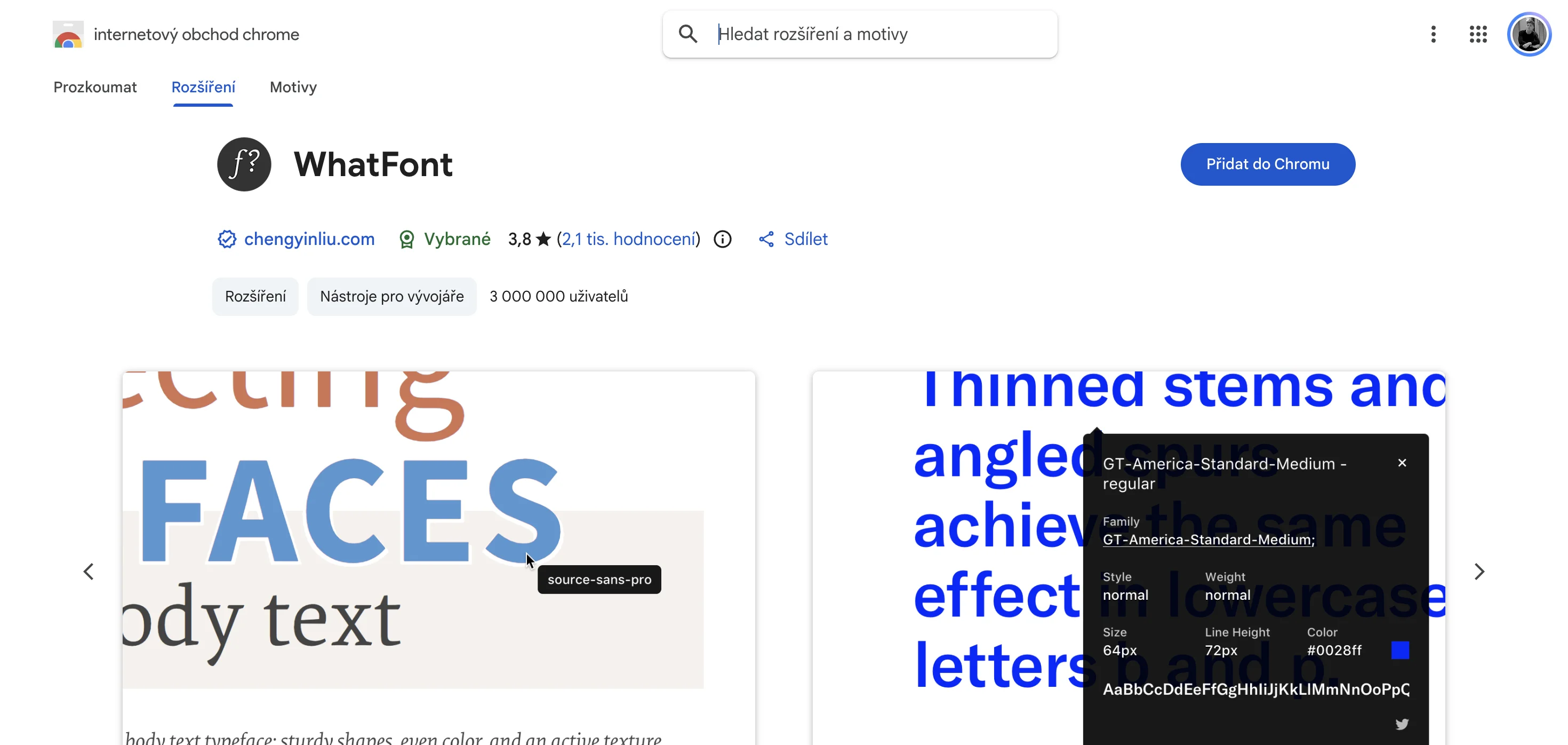
WhatFont does for typography what ColorZilla does for color. Click the extension, hover over any text on any website, and WhatFont shows you the font family, size, weight, line height, and color in a tooltip. Click the text to lock the tooltip and see the full CSS. If the font is served by Google Fonts, Adobe Fonts, or another service, WhatFont tells you which one.
Why designers use it: A client sends you a hotel website and says "I want the text to feel like this." You hover over the headline with WhatFont and learn it is Canela Text at 48px, weight 300, served via Adobe Fonts. Now you can spec the same typeface for their brand deck or find a similar alternative if Canela is outside budget. Without WhatFont, you would inspect element in DevTools, parse the font stack yourself, and still not know where it is hosted. This extension makes typography research instant, which matters when you are building a lot of brand or digital deliverables alongside spatial work.
The workflow: Click the WhatFont icon, hover text, read the tooltip. Click any text element to expand the full details panel. Press Escape or click the icon again to turn it off. The extension is completely passive until you activate it, so it does not slow down your browser.
What it costs: Free, with no paid version. WhatFont is an open-source project maintained by Chengyin Liu since 2011, and it has never had ads, upsells, or data collection.
Honest limitations: WhatFont shows the computed font after all CSS is applied, which means if a site uses a fallback font because the primary one failed to load, you see the fallback. Also, some websites deliberately obfuscate their font stack to prevent scraping; WhatFont will show "undefined" or a generic system font in those cases. For 95% of design sites, it works perfectly.
5. Page Ruler: Measure Elements in Pixels
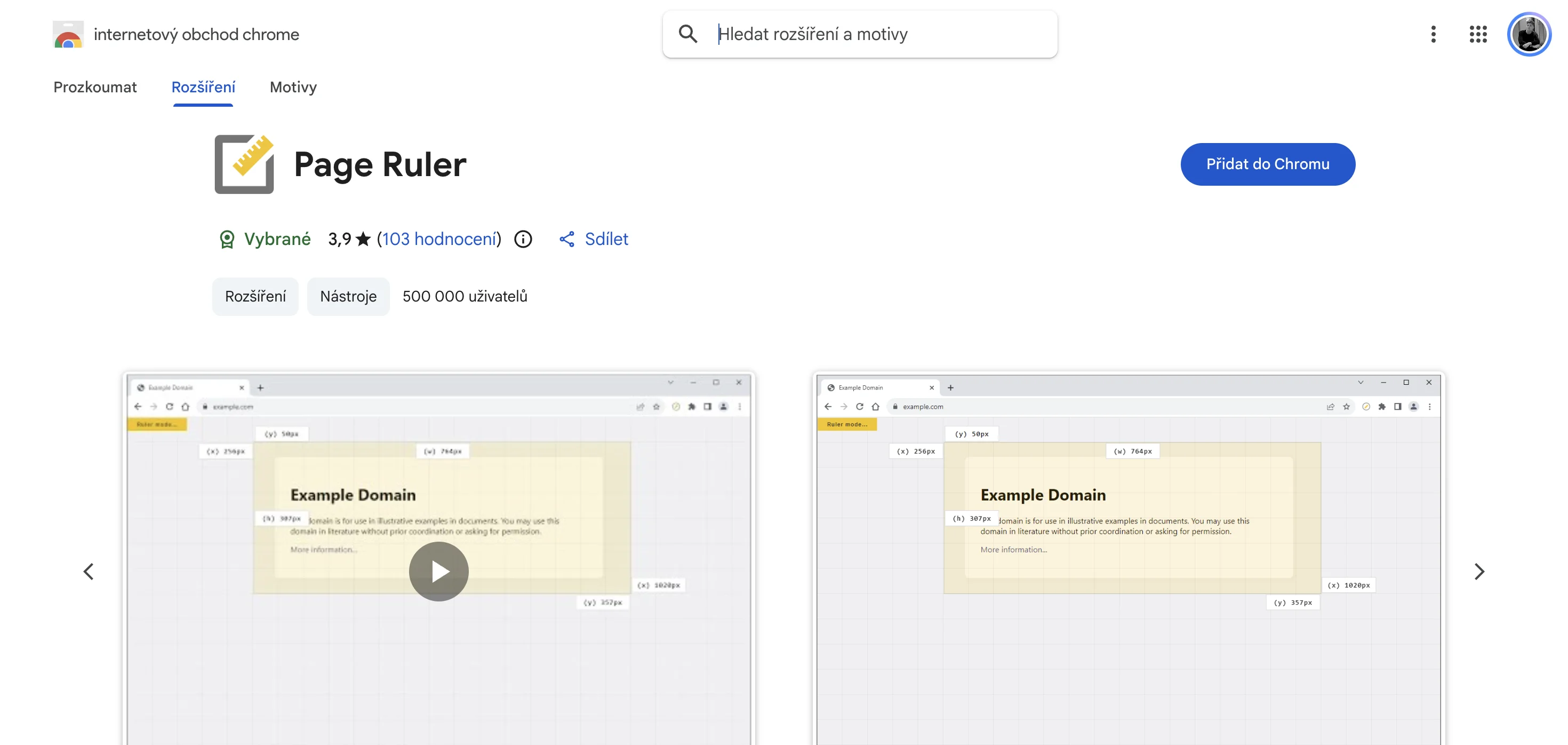
Page Ruler lets you draw a rectangular ruler on any webpage to measure width, height, and position in pixels. Click the extension, drag a box over the element you want to measure, and the dimensions appear in real time. You can also measure padding, margins, and borders of specific elements.
Why designers use it: You are looking at a layout on Behance or a furniture site and you want to know exactly how wide that gallery grid is, or how much space they left between images. Page Ruler tells you immediately, without screenshotting and opening Figma to measure manually. This is especially useful when a client says "I like how this site feels spacious" and you need to reverse-engineer the spacing system to apply the same rhythm to their project. Pixel-perfect measurements make that conversation objective rather than subjective.
The workflow: Click the Page Ruler icon, click and drag to create a measuring box over the area you want to measure. The width, height, top, left, and bottom values display live as you drag. Release to lock the measurement. Press Escape to close. You can also right-click any element to measure its exact computed box model (content, padding, border, margin).
What it costs: Free. No premium version, no limits, no account required.
Honest limitations: Page Ruler measures rendered pixels on your screen, which means if you are zoomed in or out, the measurements scale accordingly. Always measure at 100% zoom. Also, if the site is responsive and re-flows elements on resize, the measurements only reflect the current viewport size. For precise multi-device measurements, use DevTools alongside it.
6. Dimensions: Alt + Hover to Measure Distances
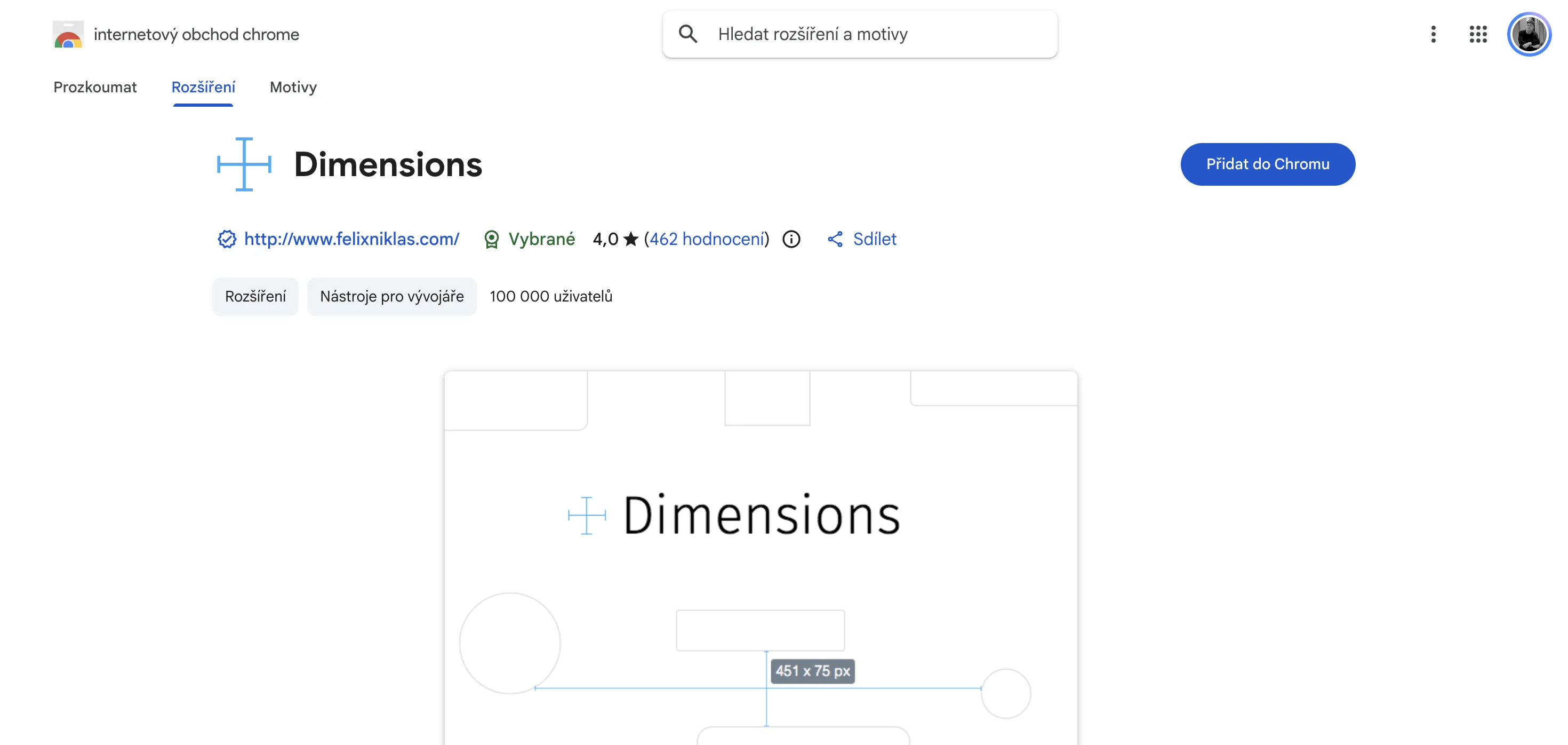
Dimensions is a lightweight alternative to Page Ruler with a different interaction model: hold Alt (or Option on Mac), hover over any element, and Dimensions draws measurement lines showing the distance from that element to all adjacent elements. Move your mouse and the measurements update live. It is faster than Page Ruler when you need to check spacing across an entire layout rather than one box.
Why designers use it: When you are analyzing a reference design and want to understand the spacing system holistically — how much margin between sections, how much padding inside containers, how the grid math works — Dimensions shows all of it at once just by hovering. This is the extension you use when studying someone else's design language to apply similar principles to your own work.
The workflow: Install the extension, then hold Alt/Option and hover any element on any page. Measurement lines appear automatically showing distances to surrounding elements. No clicking required. Release Alt to turn it off. That is the entire interface.
What it costs: Free and open source. The code is on GitHub (mrflix/dimensions), which means you can audit exactly what it does before installing.
Honest limitations: Dimensions measures the DOM structure, not the visual appearance, which means if an element is positioned absolutely or uses transforms, the measurements may not match what you see on screen. For standard layouts it is perfect; for complex CSS art, use DevTools instead.
7. Muzli: Design Inspiration on Every New Tab
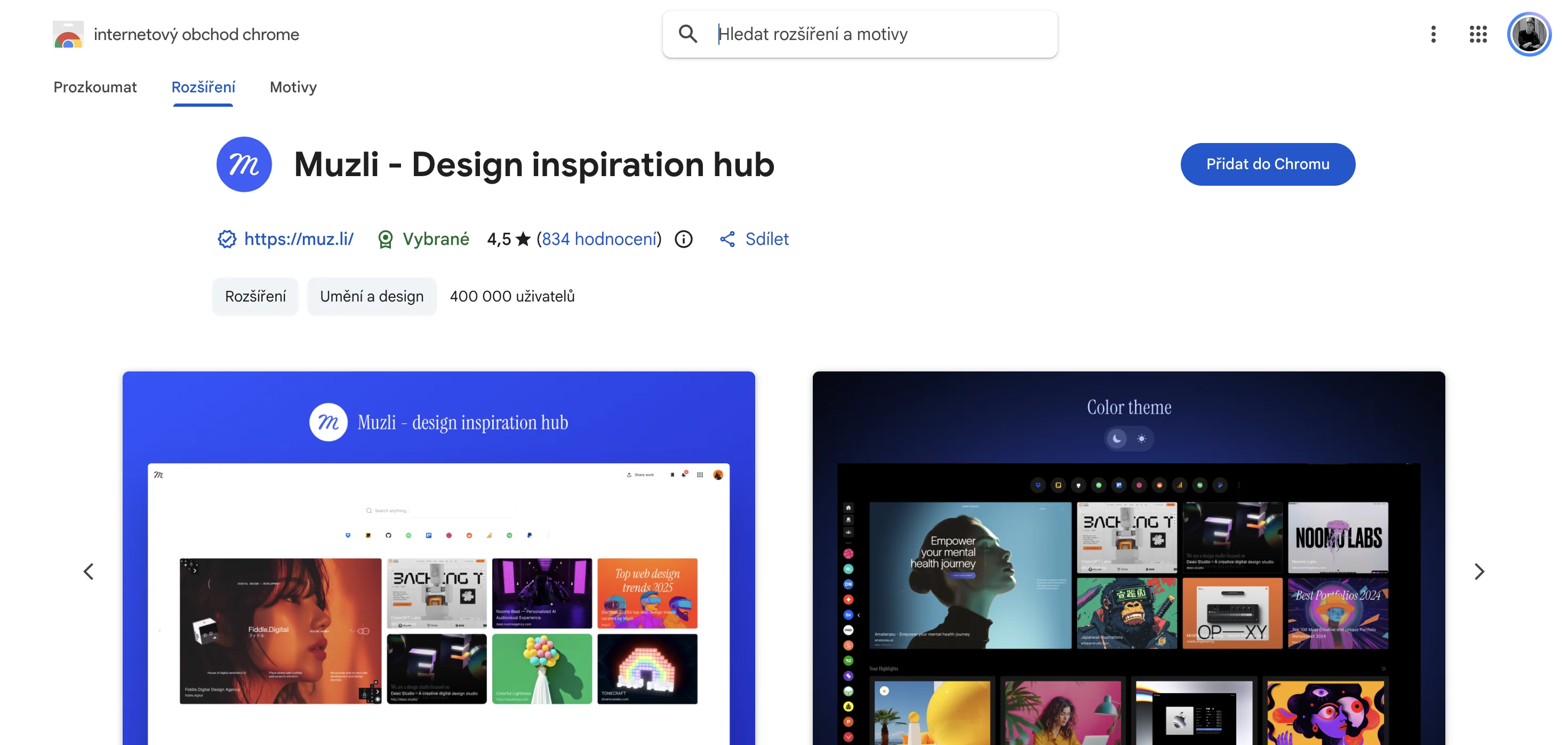
Muzli replaces your new tab page with a curated feed of design inspiration: photography, UI patterns, interior shots, branding, architecture, and product design. The content updates daily, pulling from Behance, Dribbble, and editorial design sites, so every time you open a new tab you see something current rather than a blank page or your most-visited sites.
Why designers use it: Passive exposure to good design makes you a better designer, and Muzli delivers it at the moment you are already in the browser. You open a tab to Google something, you see a beautiful room layout for half a second, and that image sits in your brain for the next client meeting. The best ideas come from cross-pollination — seeing a graphic design pattern and applying it to a spatial layout, or noticing a color combination in a photograph and speccing it for a bedroom. Muzli increases the surface area for those collisions.
The workflow: Install Muzli, open a new tab, scroll if something catches your eye, or ignore it and proceed to Google. There is no action required. The feed is the product. You can save items to collections if you want to revisit them later, but most designers treat it as ambient inspiration rather than a research tool.
What it costs: Free. Muzli has a premium tier ($5/month as of October 2026) that unlocks additional sources and saved collections, but the core feed is free and has been since launch.
Honest limitations: Muzli shows you what is trending on design platforms, which means it has a recency bias and a popularity bias. You will see a lot of maximalist colorful work because that performs well on Dribbble, and less understated commercial interiors because they do not photograph as dramatically. Treat it as one input among many, not a comprehensive view of the field.
Which Extension for Which Workflow
Chrome extensions solve different problems, and the fastest workflow uses the right tool for each moment. Here is the decision matrix we use when building client concepts:
The pattern: visualization extensions (MeltFlex, RoomDeco) replace mockup time, extraction tools (ColorZilla, WhatFont, Page Ruler, Dimensions) eliminate app-switching, and inspiration tools (Muzli) run in the background. A working stack has one from each category, not all seven at once. Install the ones that match your specific workflow friction, test them for a week, and remove the ones you never click.
A Note on Privacy and Security for Client Work
Before uploading any client room photos to a browser extension, check what it does with your data.MeltFlex stores room photos locally on your device (in Chrome's local storage) and only uploads them when you explicitly run a render; the photos are used to generate the visualization and are not used for training. ColorZilla, WhatFont, Page Ruler, and Dimensions do not upload anything at all — they read the page in your browser and stop there, which is why they work offline. AI Interior Design by RoomDeco uploads photos to their servers to generate redesigns; check their privacy policy before using it on rooms with identifying client details. Muzli fetches a content feed but does not access your browsing data.
For sensitive client work, the safest practice is to use test images first (stock photos, your own home, previous projects where the client gave media rights) before uploading any new client spaces. Read each extension's Chrome Web Store listing for its privacy policy link, and if an extension requests permissions beyond what its features require, do not install it.
How Much Time Do These Extensions Actually Save?
We tracked our own workflow for two weeks using MeltFlex, ColorZilla, and Page Ruler on real client projects, and here is what the time savings looked like in practice:
- Furniture visualization (MeltFlex): 45-90 minutes saved per client concept that would have required SketchUp mockup. We ran 8 concepts in the two-week period = ~10 hours saved. The time goes to $zero$ when the client rejects the idea in 30 seconds, which happened 3 times, proving the value of fast iteration.
- Color extraction (ColorZilla): ~5 minutes saved per inspiration reference that required precise color matching. We grabbed 23 colors across 4 projects = ~115 minutes saved, or about 2 hours. The real value is not the minutes; it is staying in flow instead of context-switching to Photoshop.
- Measurement tools (Page Ruler): ~3 minutes saved per reference layout measurement. We measured 11 spacing systems = ~33 minutes saved. Small per-instance, but the activation energy is so low that we measured things we would have otherwise skipped, which improved the design.
Total measured savings: approximately 12-13 hours over two weeks, or 6-6.5 hours per week. At an average interior designer rate of $75/hour (PayScale, 2026), that is $450-$487 of billable time reclaimed weekly, or about $23,000-$25,000 per year. The extensions cost either $zero$ (ColorZilla, WhatFont, Page Ruler, Dimensions, Muzli free tier) or $20-$40/month (MeltFlex, RoomDeco paid plans), which is a 50x to infinite ROI depending on which stack you run.
Conservative estimate: even if your workflow only saves 2 hours per week, and you bill $50/hour instead of $75, that is still $5,200/year of reclaimed time. The extensions pay for themselves in the first month.
Frequently Asked Questions
What Chrome extensions do interior designers actually use?
Interior designers use Chrome extensions for three workflows: AI furniture visualization (MeltFlex, AI Interior Design by RoomDeco), color extraction from inspiration sites (ColorZilla picks hex codes from Pinterest in one click), and measurement tools (Page Ruler and Dimensions for checking spacing on design sites). The visualization extensions are the newest category and the one that changed the workflow most dramatically, because they eliminate the SketchUp mockup step for quick client concepts.
Is there a free Chrome extension for interior design?
Yes, several. MeltFlex gives you one free furniture visualization without an account, plus 15 credits at signup. AI Interior Design by RoomDeco offers 30+ styles for room redesign with a free tier. ColorZilla is completely free for unlimited color picking. WhatFont is free for font identification. The free tiers are real enough to test a workflow before committing to a paid plan.
Can Chrome extensions replace 3D modeling software for interior designers?
No, but they can replace it for the first client conversation. A Chrome extension gives you a photorealistic concept in 30 seconds that a client can react to, which is faster than opening SketchUp for a "maybe." If the client commits, you model it properly. If they do not, you saved two hours. Extensions are a triage tool, not a replacement for measured design work.
Do interior designers need Chrome extensions if they already use design software?
Yes, because the extension runs while browsing, which is when ideas happen. You are on Pinterest, a client sends a product link, or you spot a color on a brand site. The extension is already there. Opening a desktop app to grab one color or test one chair is friction most designers skip, which means the idea dies. Extensions lower the activation energy for trying something.
Which Chrome extension is best for visualizing furniture in a client's room?
MeltFlex if the furniture matters. It places real, buyable products from furniture sites into a room photo at accurate scale, so the client sees exactly what you are specifying rather than a generic AI sofa. AI Interior Design by RoomDeco is stronger for full room restyling when the exact product is less important than the aesthetic direction. Both have free tiers; test them on the same room photo and pick based on your workflow.
Can I use Chrome extensions for client presentations?
Yes, for concept approval before the detailed proposal. A browser extension generates a high-resolution concept in about 30 seconds, which is fast enough to run three options in a first call and see which direction the client reacts to. That feedback loop used to take a day of modeling. Now it happens live, the client feels heard immediately, and you only spend time on the direction that already has buy-in.
Are Chrome extensions secure enough for professional design work?
Check what each extension does with your data. MeltFlex stores room photos locally on your device and only uploads them when you run a render. ColorZilla, WhatFont, Page Ruler and Dimensions do not upload anything at all; they read the page in your browser and stop there. AI Interior Design by RoomDeco uploads photos to generate redesigns. For client work, read the privacy policy before uploading any room photo that shows identifying details.
Do Chrome extensions work for commercial interior design projects?
For concept development, yes. For construction documentation, no. Extensions are photo-based visualization tools, which means they show aesthetic direction but do not produce measurements, elevations, or CAD files. Use them to align on style and layout with a client or developer before you draft the real documents. Some designers run extensions live in a client meeting to test alternate finishes on the spot, which closes the concept-approval loop in one session instead of three.
Install and Start Saving Time Today
The fastest way to test whether Chrome extensions fit your workflow: install ColorZilla (free, universal), MeltFlex (free first render, furniture-specific), and Page Ruler (free, measurement). Use them on your next three client projects and track whether you actually click them. If you do, expand the stack with WhatFont for typography work, AI Interior Design for style exploration, or Muzli for passive inspiration. If you do not click them after a week, uninstall and stick with your current tools — extensions only save time if they match your specific workflow friction.
For interior designers running dozens of visualizations per month, the MeltFlex web app gives you full control over room editing, lighting, materials, and batch rendering beyond what the Chrome extension offers. For homeowners exploring whether to hire a designer at all, the extension shows you what your furniture will actually look like before you commit, which makes the decision transparent instead of speculative.
Related Reading
- AI workflow for interior designers, where the Chrome extension step sits in the concept-to-client loop.
- Best AI interior design tools compared, the full-featured apps when browser extensions are not enough.
- AI for interior design business, how designers use AI tools to scale without hiring.
- AI space planning tools for architects, if you need layout automation beyond furniture placement.
- How much time AI actually saves architects, measured time savings from real projects.
- See furniture in your room before buying, the tools homeowners use to visualize without hiring a designer.



)