Free tool
Find Furniture From a Photo
Upload a room photo. Google Cloud Vision boxes and names every sofa, chair, table and lamp, and one click searches the web for each piece with Google Lens. Free to try, no account needed; then see the piece in your own room with the AI furniture changer.
This furniture finder does the one thing Google Lens cannot do on its own: it cuts the room into pieces first. Upload a photo of a room, your own or somebody else’s, and Google Cloud Vision draws a box around every piece of furniture it can see and names it by colour and kind: “green sofa”, “cream coffee table”, “brown wood sideboard”. Each box then becomes its own Google Lens search, with a crop of just that piece, so Lens returns sofas instead of living rooms and shows where the piece, or its closest cousin, is sold. The first search is free without an account, a free account adds three more, and how it works is written out below, including what it misses.
Furniture from a picture
How to find furniture from a photo
Upload the photo and read the numbered boxes: each is one piece of furniture Google Cloud Vision found, named by colour and kind. Click a box and press the Google Lens button; Lens searches the whole web with a crop of just that piece and shows where it is sold, or the closest things to it, with prices.
The hard part of buying furniture you saw in a photo is not the searching, it is the cropping. Lens is excellent at finding a sofa from a picture of a sofa and useless at finding it from a picture of a room. The finder makes the picture of the sofa for you; the three steps below show what happens next.
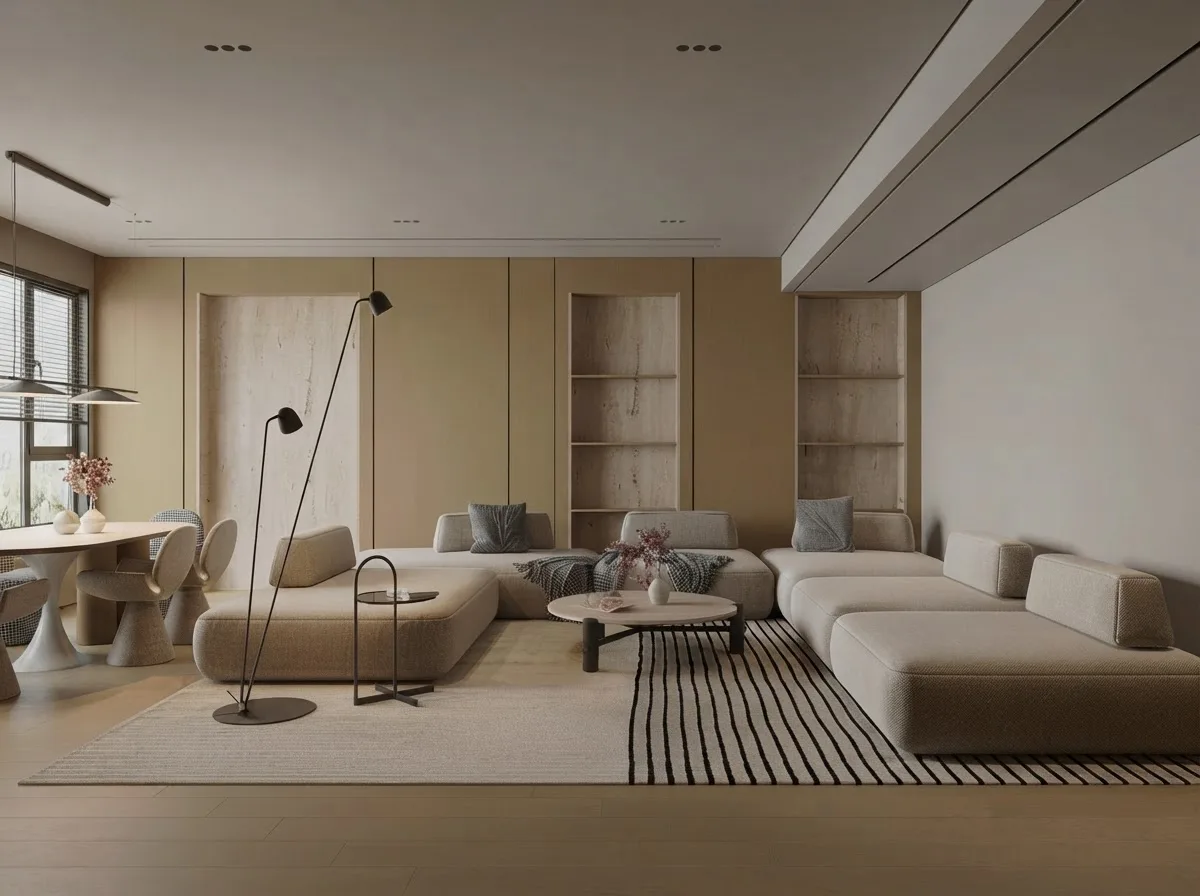
Step 1
Upload the photo
A phone photo of your own room, a listing, a hotel, a Pinterest save or a screenshot from a film. Wider is better, and so is daylight: the detector wants to see the whole piece against a background it does not blend into.
- The first search needs no account. A free account adds three more, with no card and no timer.
- JPG, PNG, WEBP or HEIC. The photo is shrunk in your browser before it is sent, so an 8 MB shot uploads in a second.
- Paste from the clipboard or drop the file on the picture; both work.
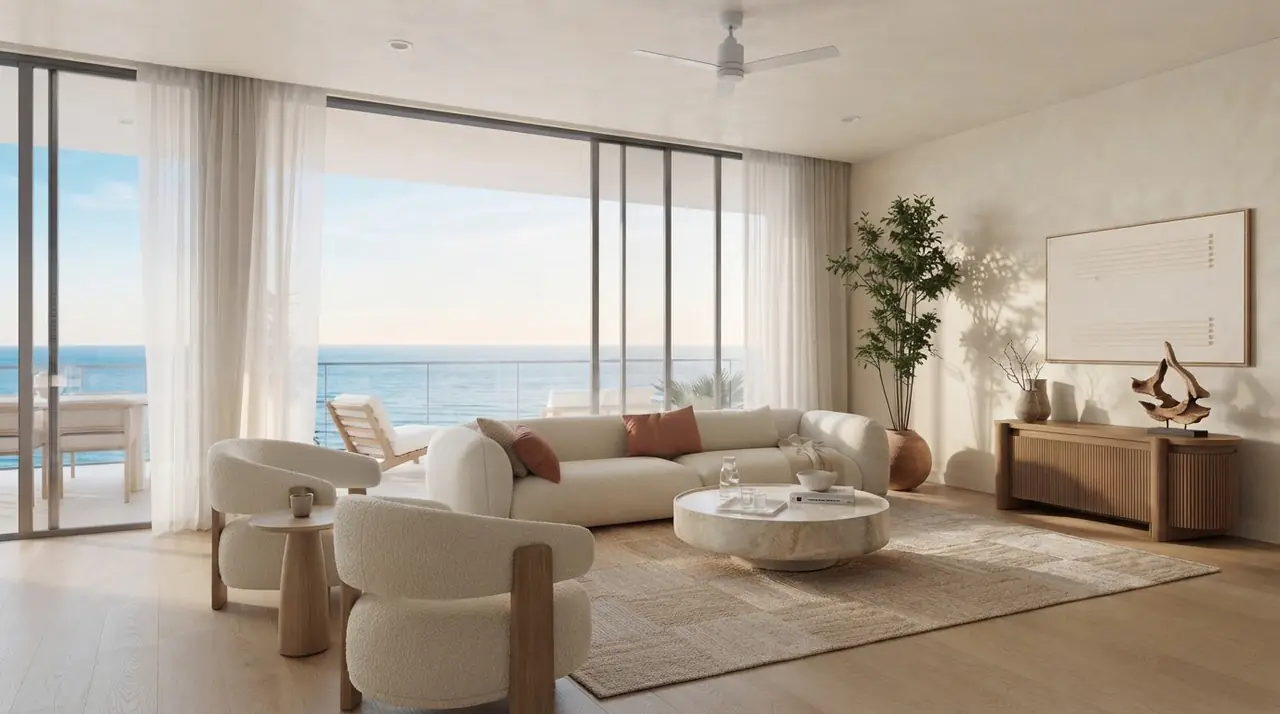
Step 2
Read the numbered boxes
Within a second or two every sofa, chair, table, bed, storage piece and lamp that Google Cloud Vision can see gets a box, a colour and a plain name: “green sofa”, “cream coffee table”, “brown wood sideboard”.
- Click a box or a row in the list to switch between pieces.
- The name is colour plus material plus what the detector saw, with how sure it is. Copy it into any store as the search.
- Rugs are not detected, and a piece the detector is less than 20 percent sure of is left out rather than guessed.
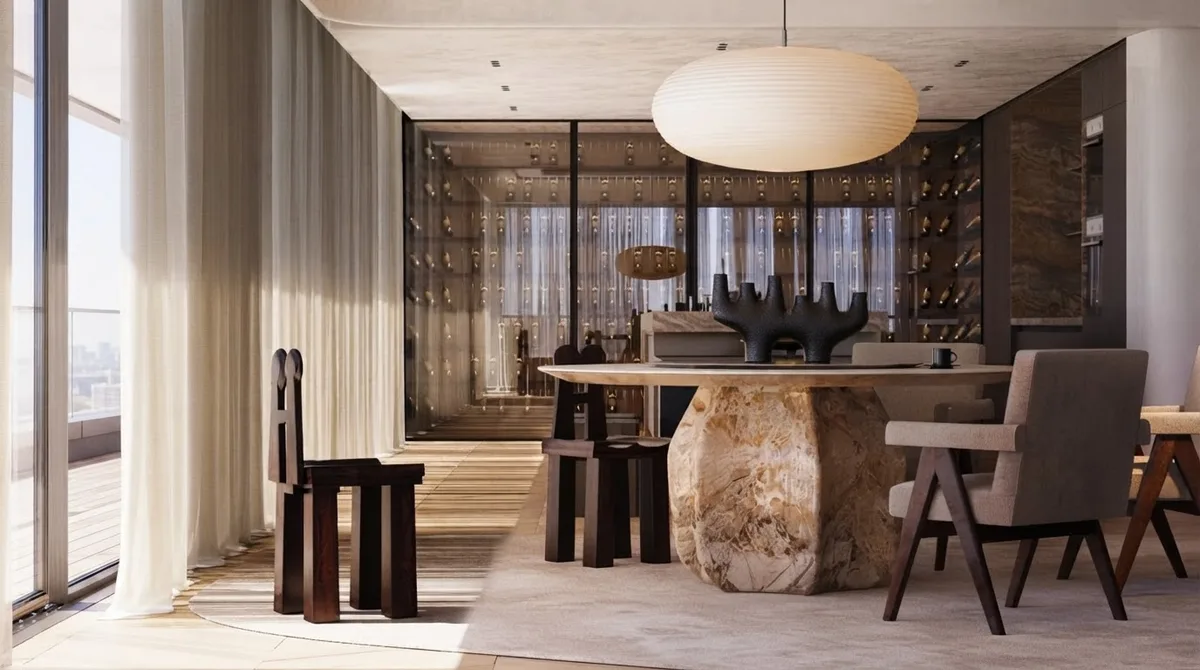
Step 3
Search that piece with Google Lens
Each piece carries one button. It opens Google Lens with a crop of just that piece, not the whole room, so Lens searches the web for the sofa and not for the wall behind it. Lens finds the exact product where it is sold, or the closest things to it, with prices.
- Lens works on the whole web, every retailer, every marketplace, every second-hand listing.
- A tight crop is the whole trick: the same sofa photographed with the room around it returns rooms, not sofas.
- Found something like it? Open the AI furniture changer and swap it into a photo of your own room before you buy.
The obvious question
Can Google Lens find furniture from a photo?
Yes, when the image is a piece and not a room. Lens is a visual search: given a tight crop of one sofa it returns sofas, including the exact product when a shop sells it; given a whole living room it returns other living rooms. This finder exists to make the first kind of image out of the second: the detector boxes every piece and each box is its own Lens search.
That is also why the tool stops there. An earlier version matched each piece against a retailer catalogue and the look-alikes were poor; Lens, with the right crop, searches every retailer at once and does it better. The manual method, with reverse image search and the Amazon dupes trick, is written up separately for when you want to do the cropping yourself.
Under the hood
How the finder boxes and names a piece
No black box, and no language model. One Google API, Cloud Vision, called twice, then a link.
- The boxes. The photo is shrunk to 1,280 px and sent to Google Cloud Vision object localization, the same detector behind the furniture detection in the MeltFlex workspace, once for the whole photo and once for each of six tiles (four quarters, two halves) in the same request. The detector misses a sofa that fills a third of a wide photo and finds it in the half; on our six test rooms the tiles doubled what came back. Every box it is at least 20 percent sure of is kept; people, plants, cushions, kitchens, windows and doors are thrown away by name, and the same piece found twice is merged.
- The names. Each box is cut out and the crops go back to Cloud Vision in one request for labels and dominant colours. The labels sharpen the detector’s coarse word within its kind (a “table” may become a coffee, side or dining table, never a chair) and supply a material word when Vision is at least 68 percent sure of it (wood, marble, glass, leather, wicker). The dominant colour is read off the middle of the crop, so the wall and floor around the piece do not vote, converted to CIE Lab and assigned to one of thirteen colour families. The name is colour plus material plus kind.
- The search. Each crop is stored once and its address is handed to Google Lens as the image to search with. Nothing else is sent: no room, no other pieces, no account details. Lens does the rest, on the whole web.
Where it fails
How accurate is a furniture finder from a picture?
Precise about what it finds, blind to what it does not. On six rooms from our gallery the detector drew 28 boxes and every one sat on a real piece of furniture, named by the right kind in all but two cases (a marble dining table called a coffee table, a floor lamp found twice). What it misses is the bigger number: rugs are never returned, a low grey sofa on a grey floor was skipped, and so were a TV unit and two dining chairs half hidden behind a sofa.
Two limits are worth knowing before you trust a result. First, the detector decides what exists: if Cloud Vision does not draw a box, the piece is not on the list, and it draws fewer boxes on low-contrast rooms and rendered images than on a phone photo of a real room. Second, the name is a description, not an identification: “green sofa” is what the finder knows, and it is Lens, on the crop, that turns it into a product. Treat the boxes as the map and the Lens results as the answer.
What we measured
Six rooms, 28 pieces found, and what was left out
We ran the finder on six landscape renders from the MeltFlex gallery on 17 September 2026, with the same detector the page uses. The third column is what a person sees in the picture that the detector did not box; the last is the wall-clock time of the search including both Cloud Vision calls and the crops.
| Room | Pieces found | Missed | Time |
|---|---|---|---|
| Green sofa open-kitchen living (the sample above) | 4 | two bar chairs behind the sofa, rug | 1.0 s |
| Burgundy boucle living room | 6 | rug | 2.1 s |
| Grey sofa open-plan living | 3 | TV unit, dining table, two dining chairs, rug | 1.4 s |
| Minimal beige living with floor lamp | 7 | dining table, rug | 1.6 s |
| Blue sofa home library | 3 | ceiling light, rug | 1.9 s |
| Scandi plank gallery-wall living | 5 | wall shelf | 2.1 s |
All six searches finished in one to two seconds; the first one of the day is a little slower. Nothing is taken from your allowance when a search fails.
The next step
Naming the piece is half the job. Seeing it in your room is the other half.
Every piece on this page carries a second button that opens the MeltFlex AI furniture changer. Upload a photo of your own room there, describe or pick the piece you found and the AI swaps your current sofa, chair or table for it, in your light, with your walls, floor and windows left alone. Run two or three candidates on the same photo and the decision makes itself.
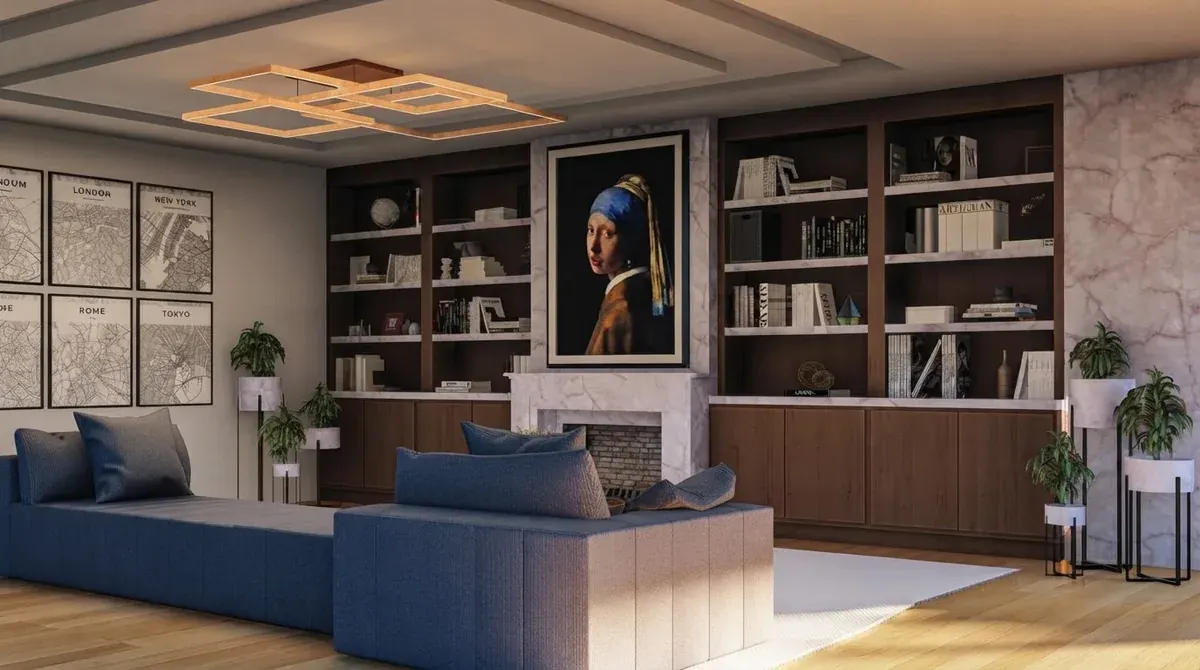
MeltFlex tool
AI Furniture Changer
Find the piece here, open the changer, upload your room. The furniture changes, nothing else does.
- Keeps the walls, floor, windows and lighting exactly as photographed.
- Swaps one piece or several; describe it or upload a product photo of it.
- Works from any phone photo; results in about 30 seconds.
- Buy from the shop Lens found when you are sure, not before.
Keep reading
Guides for the piece you just found
Frequently asked questions
How do I find furniture from a photo?
Upload the photo here. Google Cloud Vision object detection draws a box around every piece of furniture it can see, and its labels and dominant colours name each box (“green sofa”, “brown wood coffee table”). Click a box and press the Google Lens button: Lens searches the whole web with a crop of just that piece and shows where it is sold, or the closest things to it, with prices. The whole point of the tool is the crop; Lens on the full room photo returns rooms.
Can Google Lens find furniture from a photo?
Yes, and it is the best free tool for it, when you give it the right image. Point Lens at a whole room and it returns similar rooms; point it at a tight crop of one sofa and it returns sofas, including the exact one when a shop sells it. This page does the cropping for you: the detector boxes every piece, and each box becomes its own Lens search.
How do I find a couch from a picture?
Upload the picture, click the box on the couch and press “Search this piece with Google Lens”. Lens opens with a crop of just the couch and lists visually similar products and the pages that sell them. If the couch is a well-known design, the exact product is usually in the first row; if it is a one-off, you get the closest shapes and fabrics on the market.
Is the furniture finder free?
Yes. The first search is free with no account at all. A free account adds three more, for life, with no card and no trial that expires. After that a MeltFlex plan keeps it open and adds the studio tools: swapping the furniture in a photo of your own room, repainting walls, restyling the whole room. The Google Lens searches themselves are free and unlimited; the allowance covers the detection.
Why do I have to sign in after the first search?
Because every detection is a paid Google Cloud Vision call, and a counter that lives only in a cookie or on your device is cleared in seconds. The first search is tracked on the server without an account; the next three are counted per account, which is what makes “three per person” true instead of “three per tab”. Signing in with Google or email takes a moment and brings you straight back here.
Does it search a shop catalogue?
No. Earlier versions matched against a retailer catalogue and the look-alikes were poor, so the tool now does one thing well: it finds and names the pieces, and hands each one to Google Lens, which searches every retailer on the web with the crop. What you get back is whatever the web sells that looks like your piece, not a curated shortlist from a few shops.
What does it miss?
Whatever Google Cloud Vision does not draw a box around. In our six test rooms that was every rug, a low grey sofa on a grey floor, a TV unit and a pair of dining chairs half hidden behind a sofa. A piece it is less than 20 percent sure of is left out rather than guessed, and the colour in a name can be fooled by whatever sits on the piece: a travertine table with a dark bowl on it reads brown. A wider, brighter photo with the furniture in the open fixes most of it.
Is my photo stored?
The full photo is sent to our server once for the detection and is not kept. A small crop of each detected piece is stored so that the Google Lens link has an image to search with. Nothing is used to train anything, and Lens receives only the crop you click, never the whole room.
Sources
Where the method and the definitions come from
- Google Cloud, “Detect multiple objects”, Cloud Vision API documentationThe detector that draws the boxes. Quoted: “Object localization identifies multiple objects in an image and provides a LocalizedObjectAnnotation for each object in the image.”
- Google Cloud, “Detect labels”, Cloud Vision API documentationThe labels that sharpen a “table” into a coffee table and supply the material word. Quoted: “The Cloud Vision API can detect and extract information about entities in an image, across a broad group of categories.”
- Google Cloud, “Detect image properties”, Cloud Vision API documentationWhere the colour of each piece comes from. Quoted: “The Image Properties feature detects general attributes of the image, such as dominant color.”
- Google Search Help, “Search with an image on Google”How the Google Lens search on every piece works: an image search that returns similar images and the sites that carry them.
What we could not verify: what Google Lens returns for your crop. Lens results depend on what the web has indexed on the day, and we do not see them; the tool hands Lens the image and steps aside. Our six-room measurement covers the boxes and the names, not the shopping.
A map of the photo, not a product identification. The finder names the kind, colour and material of a piece and hands a crop of it to Google Lens; it does not claim any result Lens returns is the item in your photo, and it does not sell anything. Google Cloud Vision and Google Lens are Google products; MeltFlex uses the Vision API under Google Cloud’s terms and is not affiliated with Google or with any retailer Lens surfaces. Last reviewed 17 September 2026.
Found the piece? Now see it in your room.
A name tells you what to search for. A picture tells you whether to buy it. Open the AI furniture changer, upload a photo of your room and see the candidates in place before you order anything.
Open the AI Furniture ChangerPrefer the full studio? Start a free MeltFlex design.

